
How to Make Google Slides Vertical (Portrait Orientation)
Google Slides has no portrait button. Use File → Page setup → Custom and make the height larger than the width. Includes sizes for print, phone, and iPad.
To make Google Slides vertical, open the presentation on a computer, go to File → Page setup, choose Custom from the size dropdown, enter a height that is larger than the width, and click OK. Google Slides has no “Portrait” toggle. Portrait orientation is simply a custom slide size, and it applies to the whole presentation, not to individual slides.
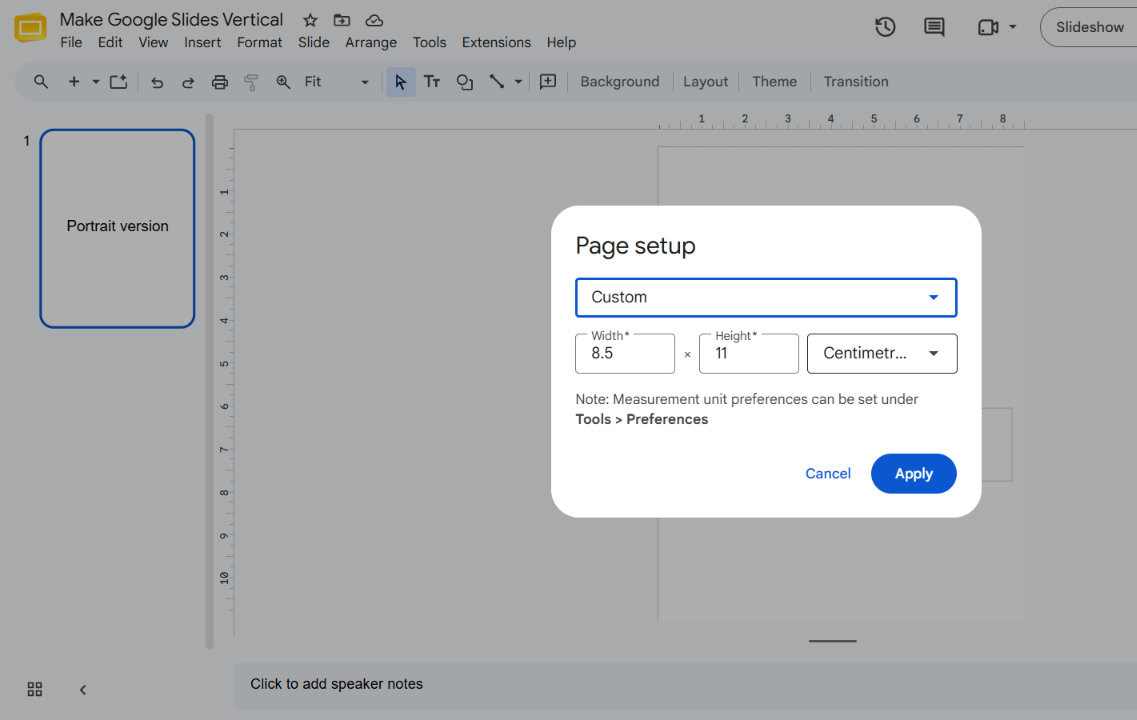
When you need vertical slides
Landscape suits projectors and screens, but some projects work better in portrait:
- Printable documents, worksheets, and handouts
- One-page posters, flyers, and infographics
- Vertical graphics for phone-first formats such as stories
Decide on the final use first. The size you enter should match the paper or the screen ratio you are designing for.
Before you start
Changing the slide size affects every slide. Google’s help page does not describe how existing text boxes and images are repositioned, so expect to adjust layouts afterward.
If the presentation already has content, make a copy first with File → Make a copy, and do the resize on the copy.
How to make Google Slides vertical
-
Open your presentation in Google Slides on a computer.
-
Click File → Page setup.
-
Click the dropdown arrow to see the size options. Google lists Standard (4:3), Widescreen (16:9), Widescreen (16:10), and Custom. None of the presets is portrait, so choose Custom.
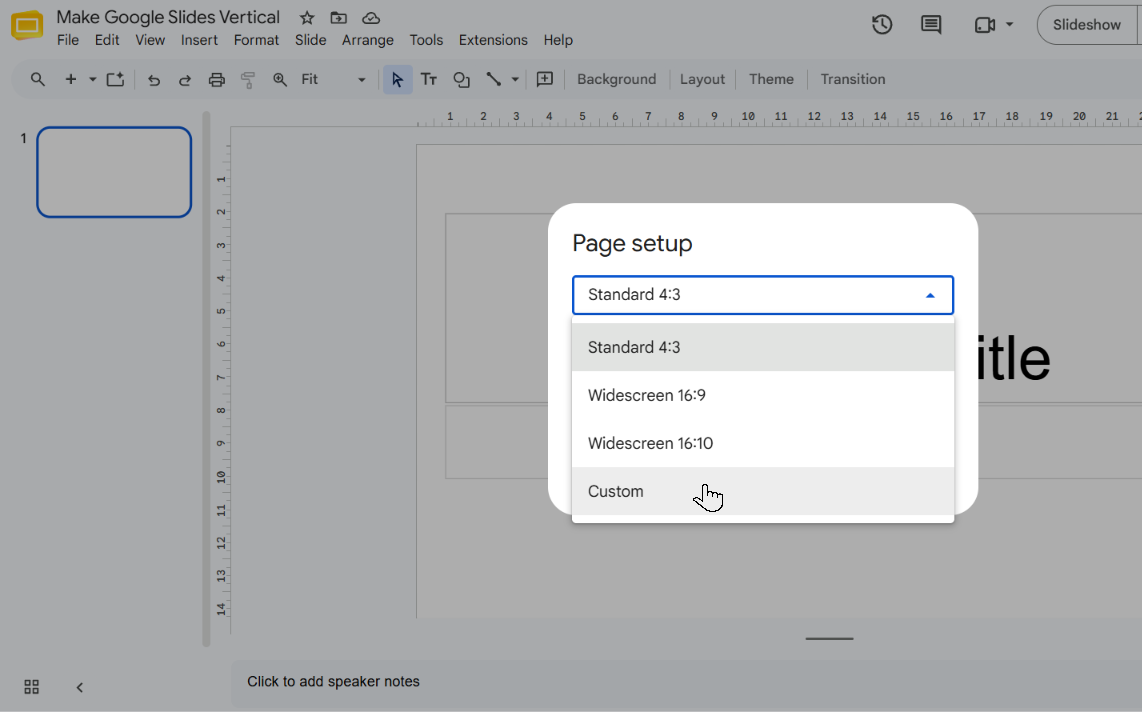
-
Under Custom, pick a unit of measurement. Google offers inches, centimeters, points, and pixels.
-
Enter the width and height, making the height the larger number. A simple method is to swap the two values already shown in the boxes.
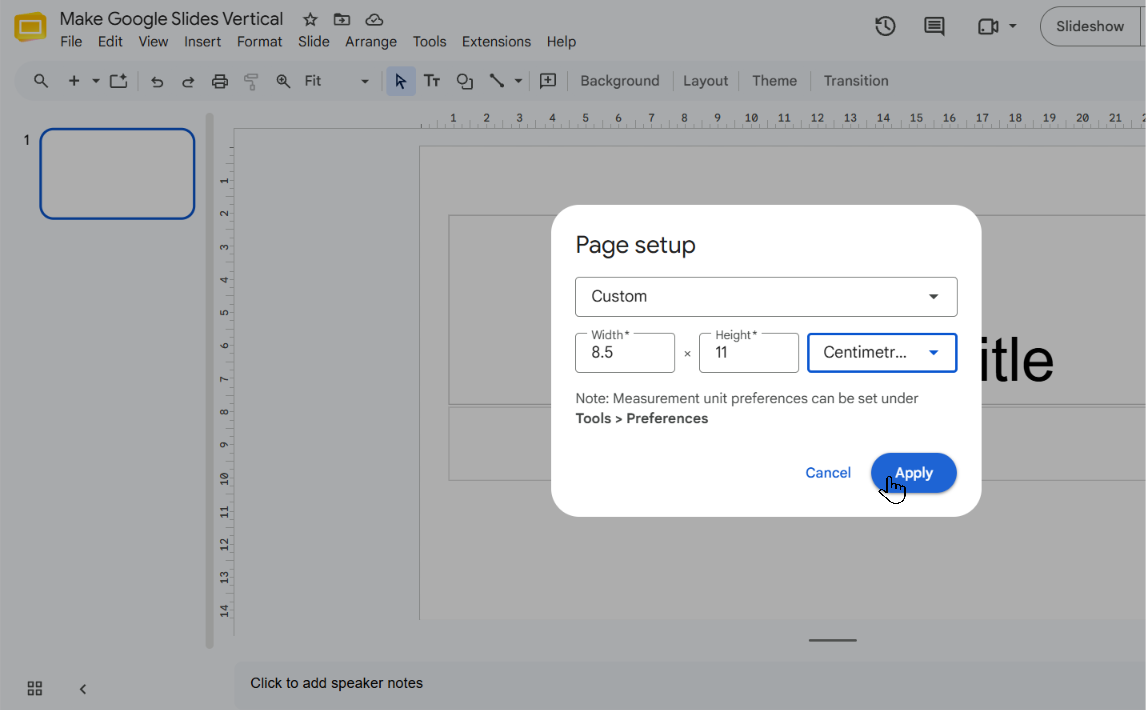
-
Click OK. The slide canvas changes to a vertical page.
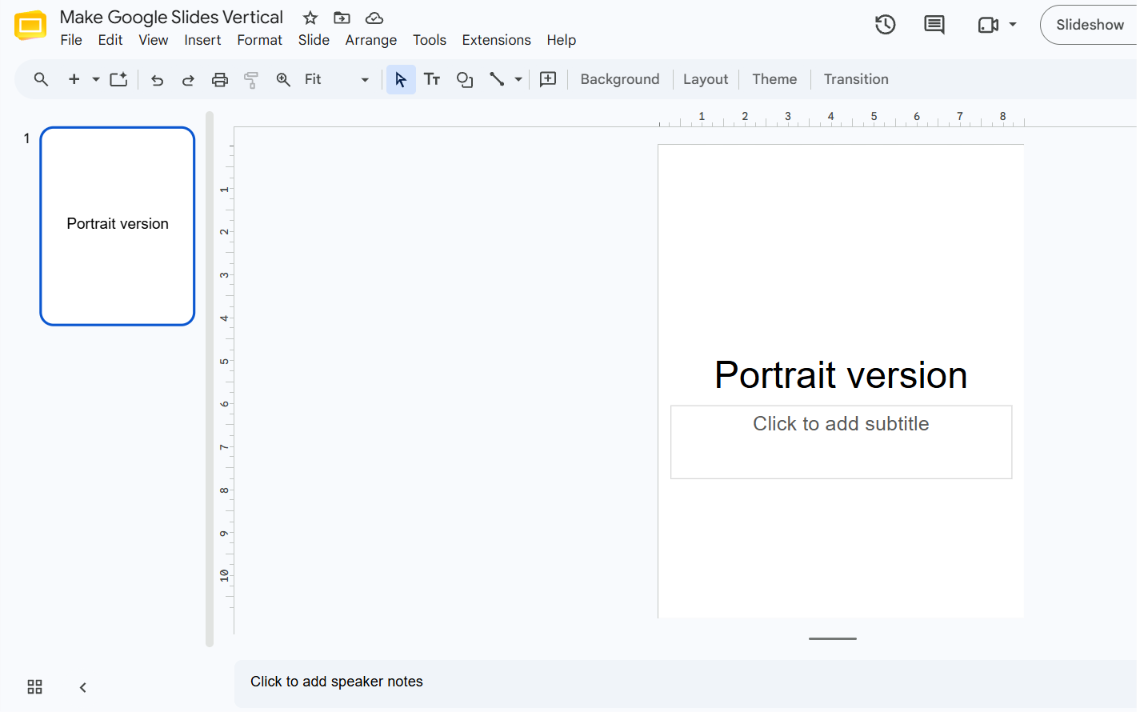
-
Go through each slide and reposition or resize text and images that no longer fit.
Common vertical slide dimensions
Google does not provide portrait presets, so you enter the numbers yourself. These are standard paper sizes and a standard 9:16 ratio.
| Use | Width × height | Unit to choose |
|---|---|---|
| US Letter page | 8.5 × 11 | inches |
| A4 page | 21 × 29.7 | centimeters |
| 9:16 vertical screen format | 5.625 × 10 | inches |
| 9:16 vertical screen format | 1080 × 1920 | pixels |
Any width and height with a 9:16 ratio gives the same shape. For print, match the paper size you will actually use.
How to make Google Slides vertical to print
Set the page size before you design, not after. If you want a portrait page on paper, enter the paper’s dimensions in Custom (for example, 8.5 × 11 inches for US Letter or 21 × 29.7 centimeters for A4).
Before printing, open File → Print settings and preview and check how each page looks. Google’s help page on slide size does not cover print layouts, so check the preview rather than assuming the printout will match the editor.
How to make Google Slides vertical on a phone, iPad, or Chromebook
Phone and iPad. Google’s help pages for both Android and iPhone & iPad say that to adjust slide size you should open Google Slides on your computer. The mobile app does not offer the setting. A presentation set to portrait on a computer can still be opened on a phone or iPad afterward.
Chromebook. Google Slides runs in the browser on a Chromebook, so the desktop steps above apply: open the presentation, then go to File → Page setup → Custom.
Can you make only one slide vertical?
No. The Page setup dialog sets the size for the presentation as a whole, and Slides has no per-slide size option. If you need both landscape and portrait pages, use two separate presentations.
Common mistakes and troubleshooting
I can’t find a Portrait or Orientation option
There isn’t one. The preset sizes are all landscape, so go to File → Page setup → Custom and set a height larger than the width.
The slide is still landscape after I changed the size
Check the two numbers. The height must be larger than the width. Also check the unit dropdown, since entering 11 and 8.5 in the wrong order, or in a mismatched unit, produces a different shape than you expect.
My text and images look wrong after resizing
Changing the slide size changes the canvas, and existing content may no longer fit. Review each slide and adjust it manually. If you want to keep the original, work on a copy made with File → Make a copy.
I can’t change the size in the mobile app
Page setup isn’t available there. Open the presentation in Google Slides on a computer.
Frequently asked questions
Can Google Slides be portrait?
Yes. Use File → Page setup → Custom and enter a height greater than the width.
Is there a keyboard shortcut for vertical slides?
Google’s documentation doesn’t list one for slide size. Use the File → Page setup menu.
What are the dimensions for vertical Google Slides?
There is no single required size. Use 8.5 × 11 inches for US Letter, 21 × 29.7 centimeters for A4, or any 9:16 pair such as 5.625 × 10 inches or 1080 × 1920 pixels for a vertical screen format.
Which units can I use for a custom size?
Inches, centimeters, points, and pixels.
Related guides
Official references
Was this guide helpful?
Your response is shown here only. It is not sent or saved.
Related guides
How to Hyperlink an Image in Google Slides
Select the image, press Ctrl+K (⌘+K on Mac), paste a URL or pick a slide, and click Apply. Learn how to link, edit, and remove image links in Slides.
Read guide