
How to Hyperlink an Image in Google Slides
Select the image, press Ctrl+K (⌘+K on Mac), paste a URL or pick a slide, and click Apply. Learn how to link, edit, and remove image links in Slides.
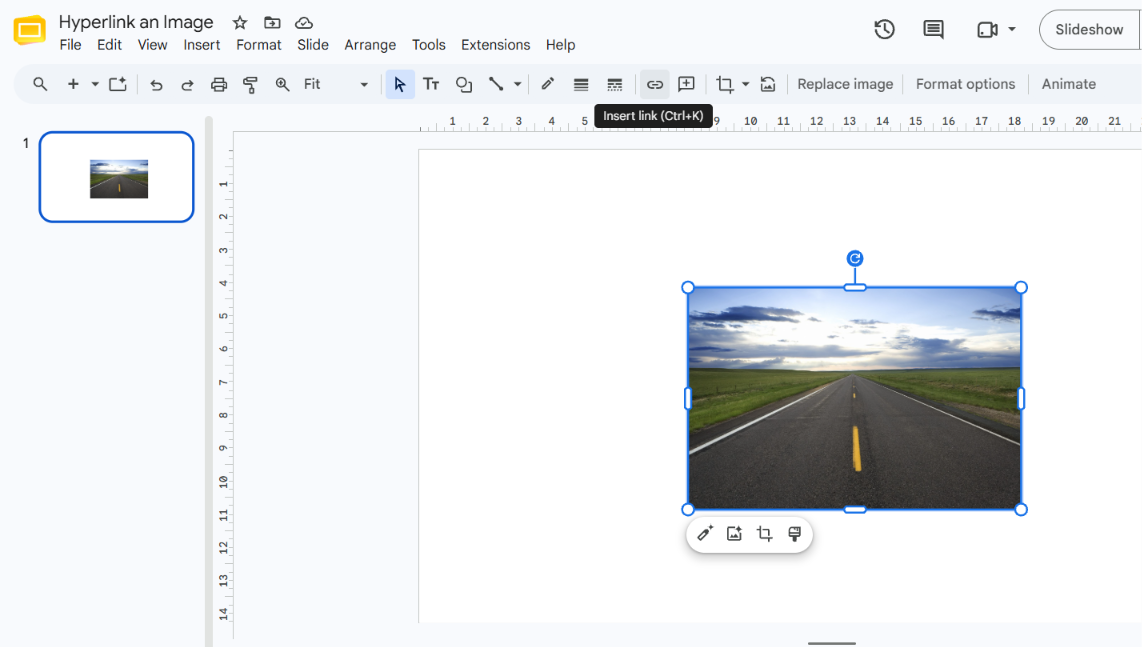
Yes, you can hyperlink an image in Google Slides. Click the image to select it, open the link box with Insert → Link (or press Ctrl + K on Windows and ChromeOS, ⌘ + K on Mac), paste a web address or choose a slide in the same presentation, and click Apply. Google lists Ctrl + K as the shortcut for “Insert or edit link” in Slides. The link opens when you click the image during a slideshow.
When linking an image is useful
A linked image works like a button. Common uses include:
- A logo or product photo that opens the matching web page.
- A thumbnail that opens a video, a Google Doc, or a Drive file.
- A navigation icon that jumps to another slide, such as a “back to agenda” button.
Slides treats images the same way it treats text and shapes for linking, so the steps below also work for those objects.
Before you start
- Insert the image first. In Slides, choose Insert → Image and pick a source such as an upload, Drive, or a URL. Google documents this in its Insert or delete images and videos guide.
- Check file permissions for Google files. If you link to a Doc, Sheet, or Drive file, the people viewing your presentation need access to that file. Otherwise the link will not open for them.
- Use the full address. Include
https://when you paste a URL so the link is recognized as a web address.
How to hyperlink an image in Google Slides
-
Open your presentation and go to the slide that contains the image.
-
Click the image once so a selection border appears around it.
-
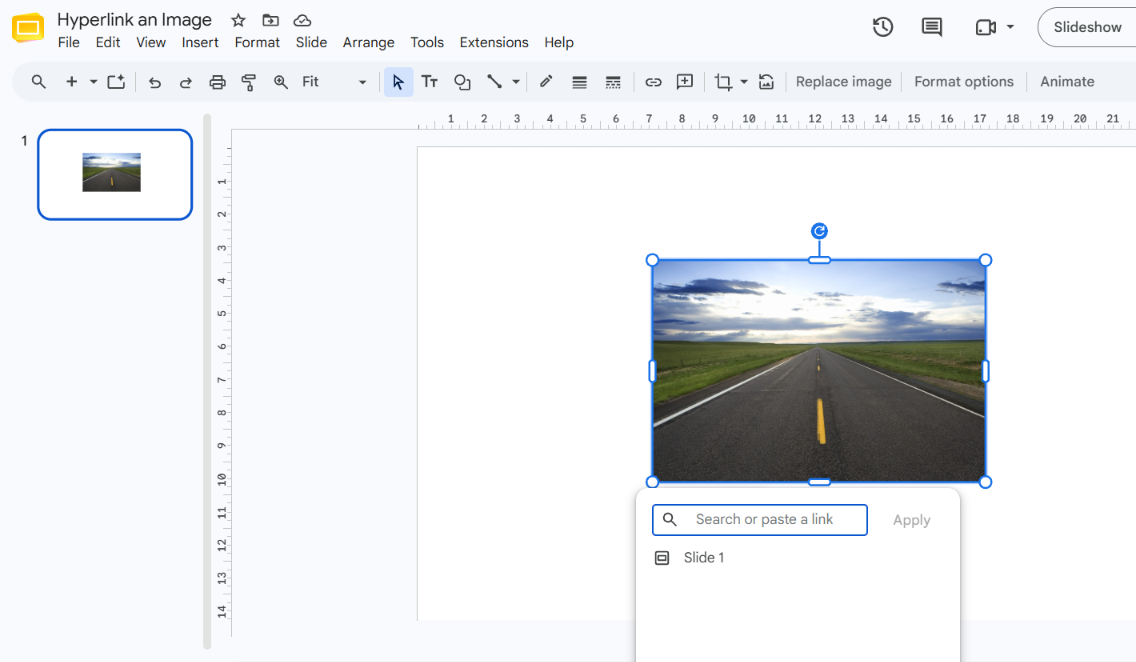
Open the link box using any one of these methods:
- Click the Insert link button (chain icon) in the toolbar.
- Choose Insert → Link from the menu bar.
- Press Ctrl + K (Windows, ChromeOS) or ⌘ + K (Mac).
The right-click Link option may not appear for images, so use one of the methods above if it is missing.
-
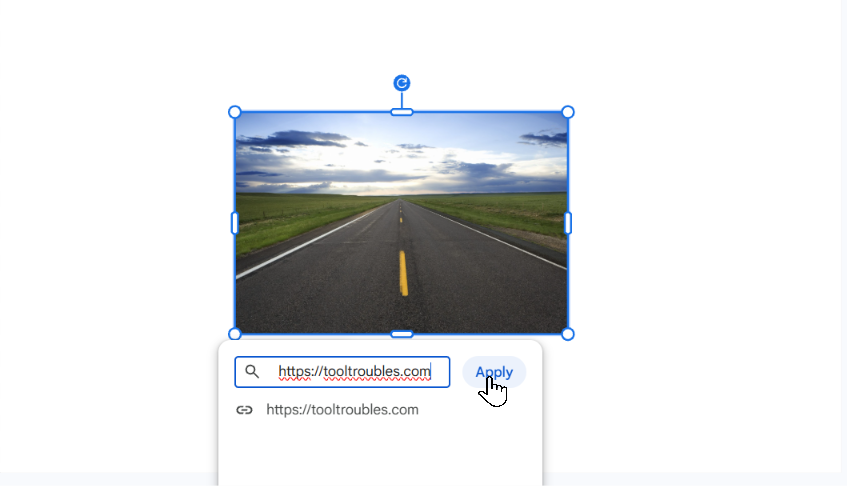
In the link box, paste the web address, or type a search phrase to find a page.
-
Click Apply.
-
Test it: click the image on the slide to see the link pop-up, or start the slideshow and click the image. To open a link from the keyboard, press Alt + Enter (Windows, ChromeOS) or Option + Enter (Mac) while it is selected, per Google’s shortcut list.
How to link an image to another slide
An image can also jump to a different slide in the same presentation, which is useful for menus and “back to start” buttons.
- Select the image and open the link box as described above.
- Click Slides in this presentation.
- Choose the destination slide from the list. You can also choose to move to the next or previous slide instead of a fixed one.
- Click Apply.
Slide links work only inside the same presentation. To send viewers to a different presentation, paste that presentation’s sharing link as a normal URL.
How to edit or remove an image link
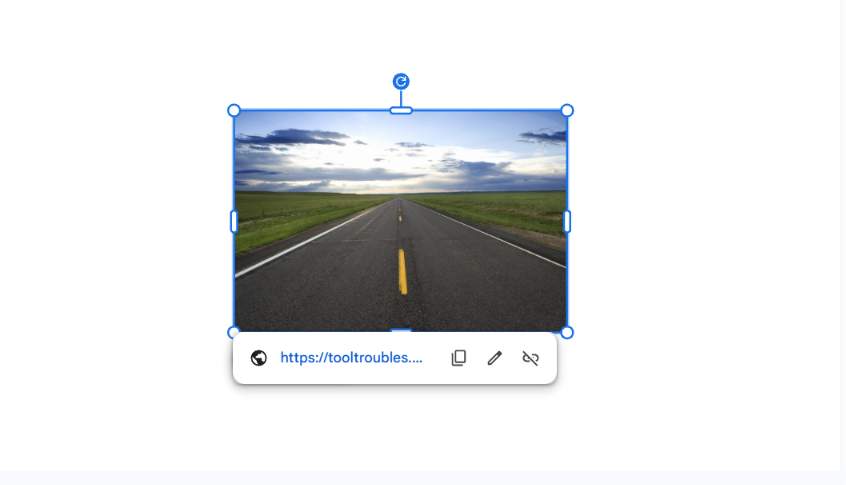
Click the linked image to display the link pop-up. From there you can copy the link, change it with Edit, or delete it with Remove. After editing, click Apply again.
You can also select the image and press Ctrl + K (⌘ + K on Mac) to reopen the link box and change the destination.
How to hyperlink an image on mobile
The Google Slides mobile app supports adding links to images, but the menu layout varies by platform and app version. In general, open the presentation in edit mode, tap the image once to select it, and look for Insert link in the app’s menu or toolbar. On Android, the three-dot menu may also contain it. Then enter the URL or choose Slides to link to a slide in the presentation. If you do not see the option, update the app or use the desktop version.
Choosing the right link destination
| Destination | Best for | Important limitation |
|---|---|---|
| Web address (URL) | Articles, product pages, videos | The link must be a complete address, ideally starting with https:// |
| Slide in this presentation | Menus, agendas, “back to start” buttons | Works only within the same presentation |
| Google Drive file or Doc | Handouts, spreadsheets, reference files | Viewers must have permission to open the file |
Common mistakes and troubleshooting
The Link option is missing from the right-click menu
The right-click Link option may not be available for images. Use the toolbar Insert link button, Insert → Link, or Ctrl + K instead.
Clicking the image does nothing in the slideshow
Links are meant to be clicked while presenting. Confirm the link was applied by selecting the image in edit mode and checking for the link pop-up. Also check the address: a missing https:// or a typo is the usual cause.
Viewers cannot open a linked Google file
The link works, but the file’s sharing settings block the viewer. Adjust the file’s access in Drive, then test with another account.
Audiences do not realize the image is clickable
Linked images do not show a visual indicator during a presentation, unlike underlined link text. Add a short caption such as “Click for details”, or place linked text next to the image.
Frequently asked questions
Can you hyperlink an image in Google Slides?
Yes. Select the image, then use Insert → Link, the toolbar button, or Ctrl + K (⌘ + K on Mac).
How do you make an image a hyperlink in Google Slides?
Follow the steps in the main section above: select the image, open the link box, paste the URL or choose a slide, and click Apply.
Can I link one image to several places?
No. A single image holds one link. To offer several destinations, use several images or add linked text boxes alongside it.
Does the link keep working if I replace the image?
Do not assume it does. Replacing an image can reset its properties, so check the link after replacing and reapply it if needed.
Related guides
Official references
- Use keyboard shortcuts in Google Docs, Sheets and Slides (Google Docs Editors Help)
- Insert or delete images and videos (Google Docs Editors Help)
Additional references (not official Google documentation):
Was this guide helpful?
Your response is shown here only. It is not sent or saved.
Related guides
How to Make Google Slides Vertical (Portrait Orientation)
Google Slides has no portrait button. Use File → Page setup → Custom and make the height larger than the width. Includes sizes for print, phone, and iPad.
Read guide