
How to Create a Fillable Form in Google Docs
Google Docs has no true form fields, but a table with dropdown chips, checklists, date chips, and placeholder chips makes a fillable form. Here's how.
To create a fillable form in Google Docs, build the layout with a table, then add the fillable parts with dropdown chips, checklists, date chips, and placeholder chips. Share the file so each person works in their own copy. Google Docs has no dedicated form-field feature, so people fill in a normal document, and anyone with edit access can change the whole file. If you need submitted responses collected automatically, use Google Forms instead.
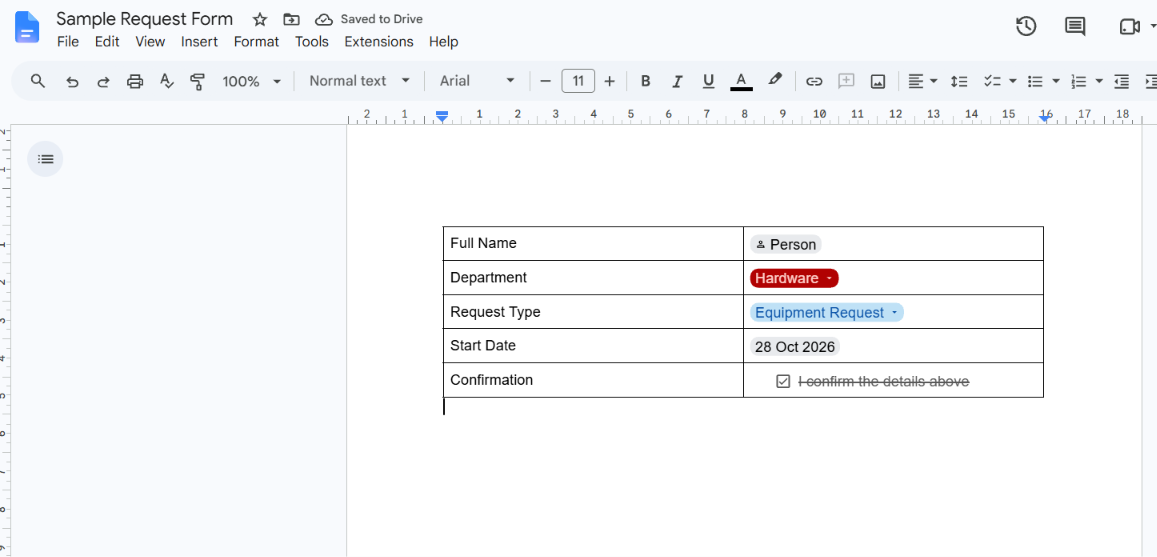
What “fillable” means in Google Docs
Word and PDF editors have form fields with validation and a submit button. Google Docs has smart chips and checklists instead. Pick the approach that matches how people will use the form.
| Approach | Best for | Important limitation |
|---|---|---|
| Table with chips and checklists in one Doc | Internal forms, checklists, requests that you review by hand | Fillers need edit access or their own copy; nothing stops them editing other parts |
| Google Forms | Collecting many responses in one place | It is a separate product, not a Doc |
| Fillable PDF from another tool | Forms that must be printed or sent as PDFs | Needs a PDF editor; Google’s help doesn’t describe exporting fillable fields from Docs |
Before you start
Keep an untouched master copy of your form. People with Editor access can change anything in the document, including your labels and layout. Sharing the master directly means one careless edit affects everyone. The steps below assume Google Docs on a computer; mobile steps may differ.
How to create a fillable form in Google Docs
-
Open a new document at docs.google.com and type a title and short instructions at the top, such as “Complete every field and return by Friday.”
-
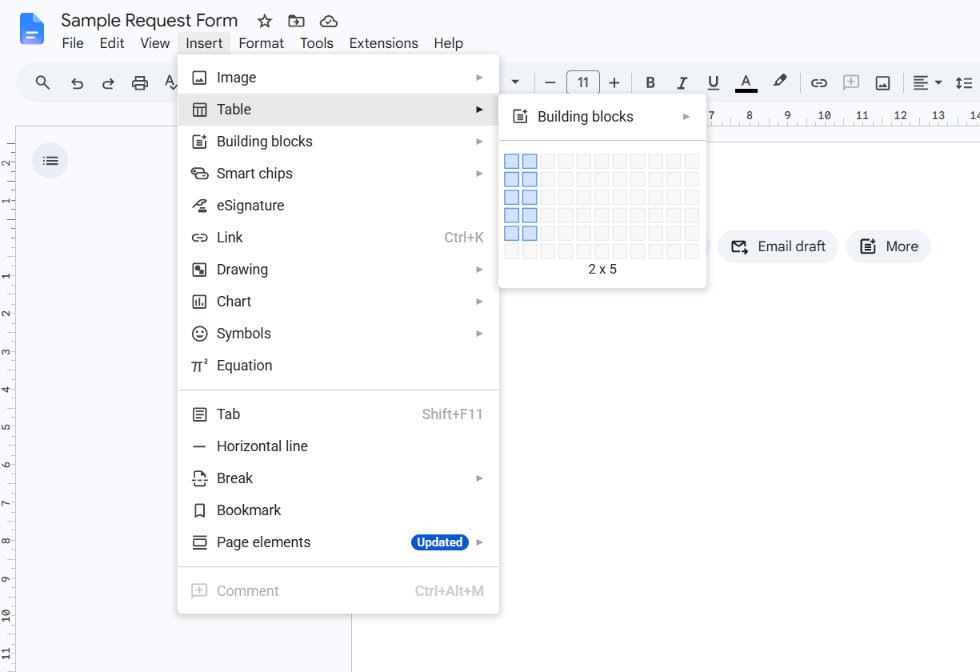
Click Insert → Table and choose a grid. A two-column table works well: labels on the left, answers on the right. Tables can be as large as 20 × 20 cells, according to Google’s table documentation. Type your labels in the left column, such as Full name, Department, Request type, and Start date.
-
Adjust the layout. Drag a gridline to resize a column, or right-click the table and choose Distribute columns to make columns equal. Select cells and use the toolbar to change border color, border width, or background color.
-
Add free-text fields with placeholder chips. Click an answer cell and type @, then select Placeholder chip. Choose the type of information the person should add. Google describes this as a smart chip that a collaborator can fill in. Repeat for each text field.
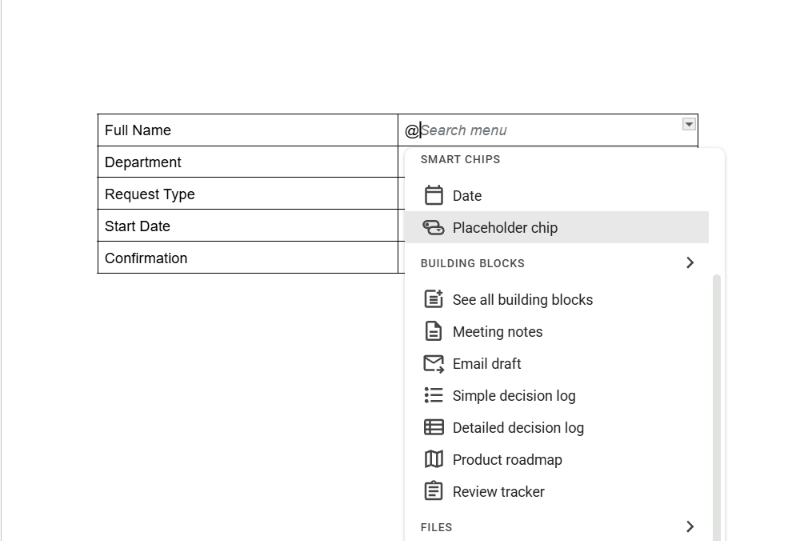
If you prefer, leave the answer cell empty and let people type in it.
-
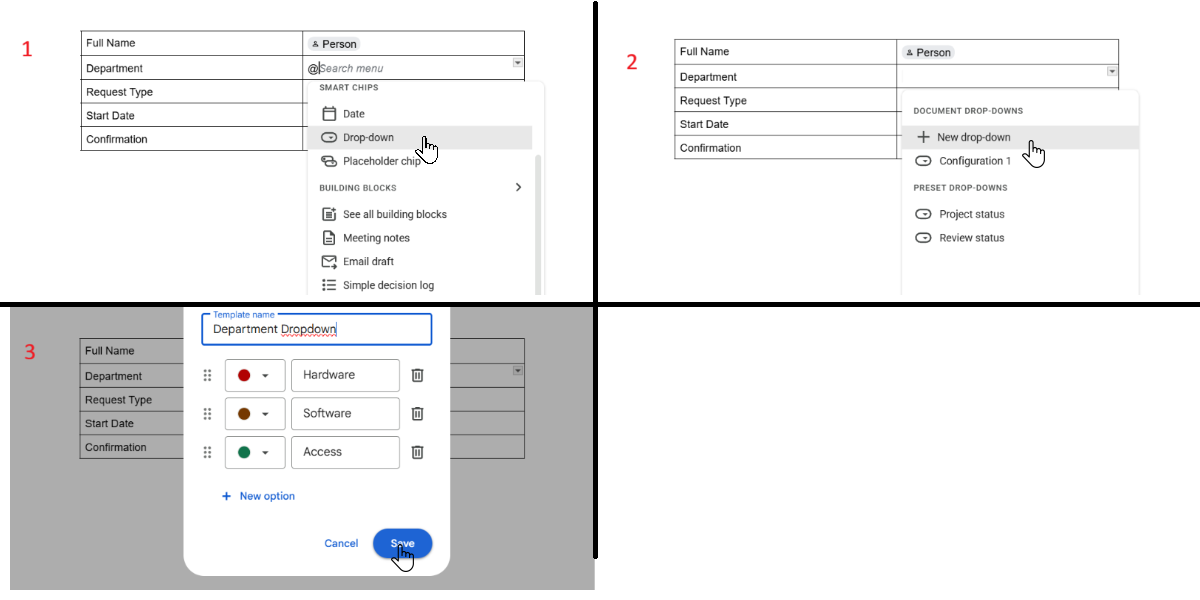
Add choices with a dropdown chip. Click the answer cell for a choice-based field, then click Insert → Dropdown, or type @dropdown and press Enter. Select a preset, or click New dropdown, name it, add your options, and save it. To change the options later, click the dropdown chip and choose Add/Edit options. Google introduced dropdown chips with custom options and colors so people pick from a fixed list instead of typing free text.
-
Add checkboxes. Type your options on separate lines inside an answer cell, select them, and click Format → Bullets & numbering → Checklist. You can also click the checklist button on the toolbar. Docs offers checklist styles with and without strikethrough on checked items; choose the one that reads better on a form. Google’s list formatting page covers converting an existing bulleted list too.
-
Add dates with date chips. In the date cell, type @date, or use a shortcut such as @today, then pick the date. Click the chip to change the date, or click Settings to change the date format.
-
Fill in the form once yourself as a test. Check that every chip can be clicked and that the layout still fits on the page, then clear your answers to produce the master.
Share the form so people can fill it out
Open Share and decide how people will interact with the file. Google explains the access levels in Share files from Google Drive.
- Everyone gets their own copy. Share the file as Viewer, and ask people to choose File → Make a copy, fill in the copy, and send it back. This protects your master.
- A “make a copy” link. Replace
/editand everything after it in the document URL with/copy. Anyone opening the link is prompted to make their own copy. This URL trick is widely used and appears in a Google Docs community answer, but I did not find it in Google’s official help pages. - One shared document. Give Editor access when several people must fill in the same file. Remember that editors can change any part of it.
Viewers and commenters cannot edit the document, so they cannot fill in chips or checkboxes in your original.
Alternative: use Google Forms for collecting responses
If you need submissions collected in one place, build the form in Google Forms. Go to forms.google.com, click Blank form, and name the form. You can also click New → Google Forms in Google Drive. Creating a form from Google Sheets saves the responses in a new sheet, as described in Google’s Forms help.
Google also lists “Help me create a form” with Gemini, which can build a form from a prompt or from Drive files such as Docs. It requires an eligible Google Workspace or Google AI plan and is described as rolling out gradually, so it may not be available to you yet. See Create a form with Gemini in Google Forms.
Common mistakes and troubleshooting
People can’t click the dropdowns or checkboxes
They probably have Viewer or Commenter access. Give them Editor access, or have them make their own copy using File → Make a copy.
The dropdown doesn’t offer the right options
Click the dropdown chip and choose Add/Edit options to add, rename, or recolor options.
Someone deleted a row or changed a label
Use File → Version history → See version history to restore an earlier version, or recopy your master. To avoid this, share Viewer access plus a copy link rather than giving everyone Editor access to the original.
The form needs to be a fillable PDF
You can download a Doc as a PDF, but Google’s help doesn’t describe that export as producing fillable fields. Use a dedicated PDF editor to add real fields to the exported file.
The Insert menu doesn’t show a Dropdown option
Try typing @dropdown in the document, or check Insert → Smart chips. If neither appears, confirm you are editing in a desktop browser, not only viewing.
Frequently asked questions
Can you create a fillable form in Google Docs?
Yes, in a limited way. You can build a form-like document with a table, dropdown chips, checklists, date chips, and placeholder chips. Google Docs does not provide form fields with validation or a submit button.
How do you create a fillable form in Google Docs without Google Forms?
Use the steps above: build the layout with a table, then add placeholder chips, dropdowns, checklists, and date chips. Share it as a copy link or with Editor access.
Can I make a Google Doc fillable for other people but protect my template?
Keep a master copy and share a copy link or Viewer access. Google’s help doesn’t describe locking individual fields in a Doc, so protection comes from sharing settings, not from field-level locks.
Is Google Docs or Google Forms better for a fillable form?
Use Docs when people fill in a document you will review by hand. Use Forms when you need many responses organized automatically.
Related guides
Official references
- Insert smart chips in Google Docs: placeholder chips, date chips, and dropdowns
- Add and edit tables: inserting and formatting tables in Docs
- Add a numbered list, bulleted list, or checklist: checklists in Docs
- Use new table templates and dropdown chips in Google Docs: Google Workspace Updates announcement for dropdown chips
- Share files from Google Drive: viewer, commenter, and editor access
- How to use Google Forms: creating a form in Google Forms
- Create a form from Google Sheets or Drive: where form responses are saved
- Create a form with Gemini in Google Forms: availability and requirements
- Google Docs community answer on /copy links: community-sourced, not official documentation
Was this guide helpful?
Your response is shown here only. It is not sent or saved.
Related guides
How to Remove a Blank Page in Google Docs (Middle, End, and Resume)
Remove a blank page in Google Docs by deleting the empty paragraph, page break, or section break behind it, plus fixes for resumes and tables.
Read guide