
How to Remove a Blank Page in Google Docs (Middle, End, and Resume)
Remove a blank page in Google Docs by deleting the empty paragraph, page break, or section break behind it, plus fixes for resumes and tables.
To remove a blank page in Google Docs, turn on View → Show non-printing characters to see what is holding the page open, then delete it. It is usually a run of empty paragraphs, a page break, or a section break. Click at the end of the last line of real content, or at the top of the blank page, and press Backspace or Delete until the page disappears. If the page won’t go away, the cause is almost always an empty paragraph after a table, a “next page” section break, or paragraph spacing, and each has its own fix below.
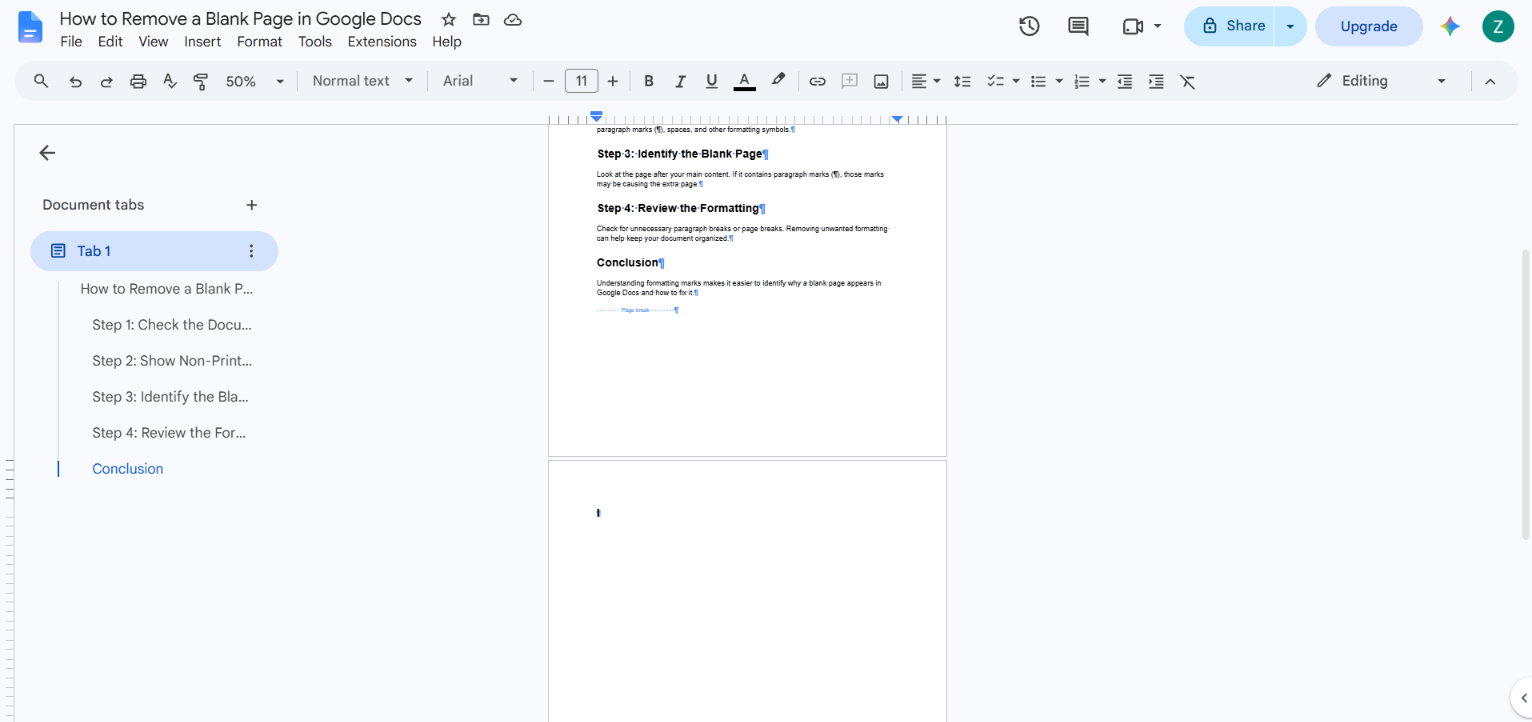
Why Google Docs shows a blank page
A page that looks empty is rarely empty. Something is still occupying space on it. The most common causes are:
| Cause | What you see with non-printing characters on | Fix |
|---|---|---|
| Extra empty paragraphs | Several ¶ marks on or before the blank page | Delete the empty paragraphs |
| Manual page break | A page break marker above the blank page | Delete the page break |
| Section break (next page) | A section break marker | Delete the section break |
| Empty paragraph after a table | A ¶ alone on the next page, directly under a table | Shrink or reposition it (see below) |
| Large paragraph spacing or “page break before” | A paragraph that looks empty but is pushed down | Reduce the spacing or turn off the setting |
Google’s help center describes page breaks, section breaks, and the “Add page break before” paragraph option, which cover most of these cases.
How to remove a blank page in Google Docs
Use Google Docs in a desktop browser for these steps. Google’s announcement describes the non-printing characters option for Docs on the web. Make sure you are in Editing mode, not Viewing or Suggesting.
-
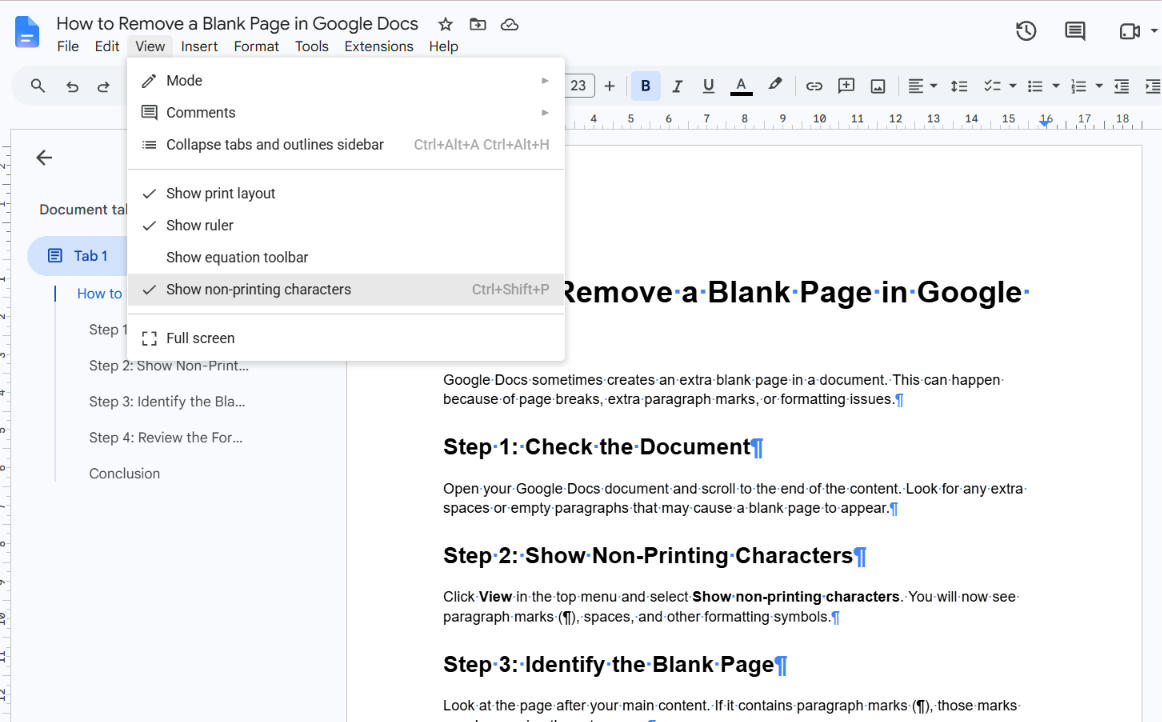
Open the document and click View in the menu bar.
-
Choose Show non-printing characters. Docs now displays symbols for paragraph breaks, line breaks, page breaks, section breaks, column breaks, tabs, and spaces.
-
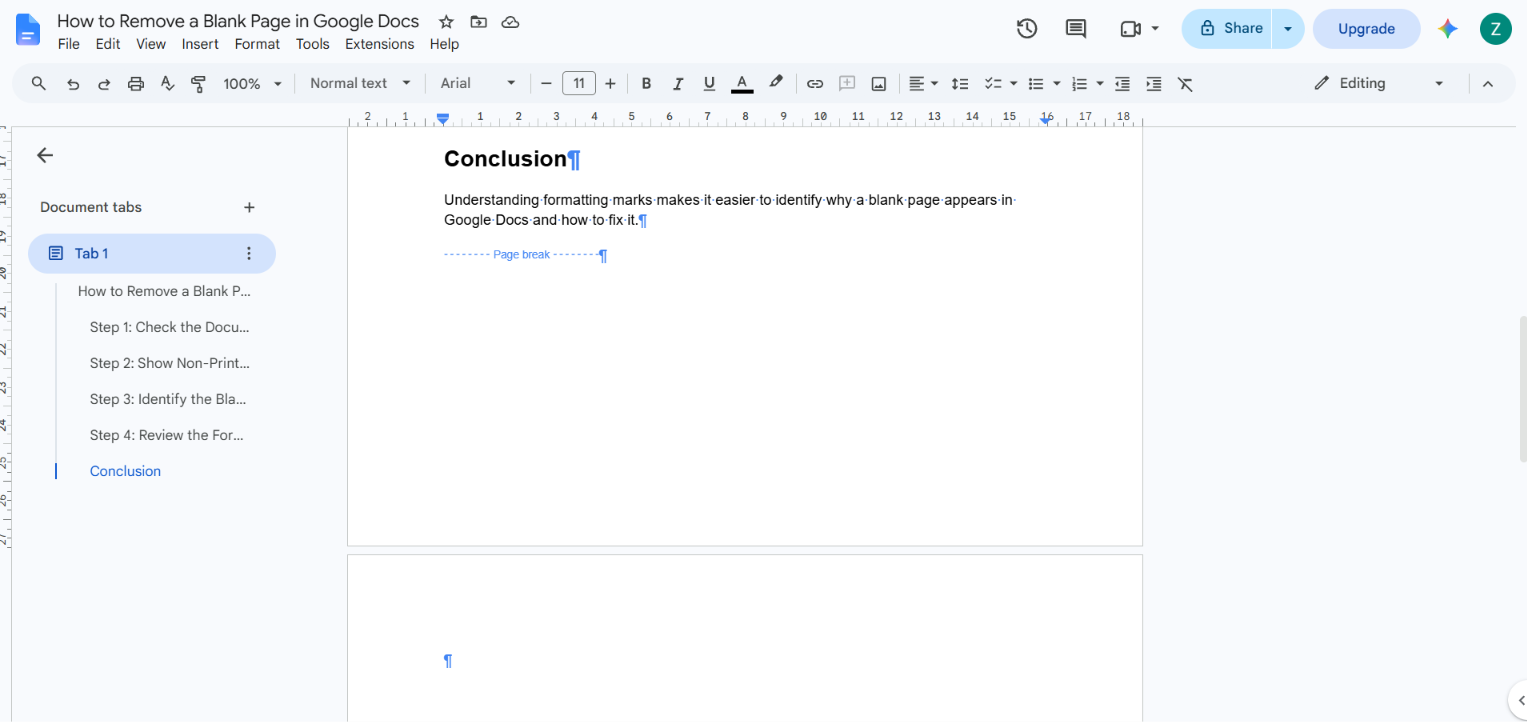
Scroll to the blank page and look at what it contains. You will see one of three things: paragraph marks (¶), a page break, or a section break.
-
Remove it:
- Empty paragraphs: Click at the end of the last line of real content (or on the blank page) and press Delete or Backspace until the marks are gone and the page closes up.
- Page break: Google says to click under the page break and press Backspace or Delete until it is removed, as described in Remove a page break.
- Section break: Place the cursor next to the section break marker and press Delete or Backspace. If the markers are hidden and you only want to see section breaks, use View → Show section breaks.
-
Check the page count in the document. When the blank page is gone, turn Show non-printing characters off again from the same View menu if you don’t want the symbols visible.
Deleting a section break can change margins or orientation for the content after it, because those settings belong to the section. If the layout shifts, press Ctrl + Z (Cmd + Z on Mac) to undo and use the margin fix described below.
Blank page in the middle of the document
A blank page between two pages of content is usually a manual page break, a “next page” section break, or a stack of empty paragraphs, sometimes combined. With non-printing characters on, click on the first line after the blank page and press Backspace until the content moves up. If two breaks are sitting together, you may need to remove both.
Blank page at the end of the document
Click at the end of the last line of real content and press Delete to remove anything after it. This works when the page contains only extra paragraph marks or a page break. If the cursor stops at the end of the content and the blank page stays, something that can’t be deleted is holding it open. See the next section.
Why you can’t remove a blank page in Google Docs
If Backspace and Delete do nothing, the blank page is being held open by something other than extra paragraph marks.
The page comes right after a table
A table at the end of a page can leave its trailing paragraph alone on the next page, and Docs won’t let you delete the last paragraph of a document. Google’s help pages don’t document this specific behavior, but it is a frequently reported cause of an undeletable last page. Try these in order:
- Shorten the content above the table, or remove an empty line inside or above it.
- Reduce row heights or the spacing around the table so the closing paragraph fits on the same page.
- Click the lone ¶ on the blank page and set its font size as small as Docs allows, so it fits under the table.
- Reduce the bottom margin slightly (see below).
Paragraph spacing is pushing content down
Large spacing before or after a paragraph can force the last empty line onto a new page. Select the final paragraphs and open Format → Line & paragraph spacing. Use Remove space before paragraph or Custom spacing to set the values to zero, as described in Google’s paragraph and line spacing help.
A paragraph has “Add page break before” turned on
If an empty paragraph has a page break before it, it starts a new page by design. Check Format → Line & paragraph spacing for that paragraph and turn the page break setting off.
The margins are too tall for the content
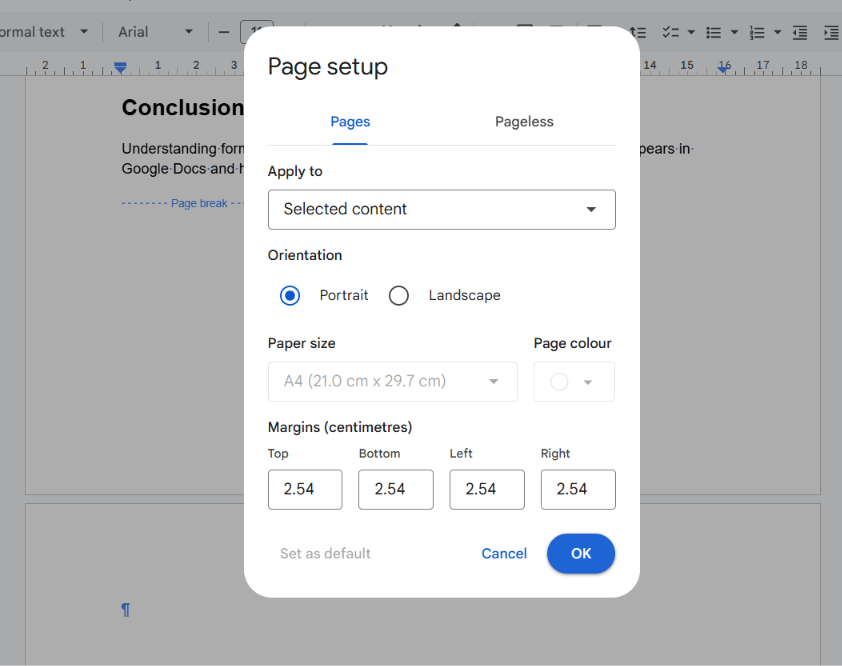
Open File → Page setup, choose the Pages tab, and reduce the top or bottom margin by a small amount. Click OK. Google’s Page setup help notes that these settings aren’t available in documents using pageless format. Margins apply to the whole document unless you apply them to a selection, so check the rest of the layout after changing them.
How to remove a blank page in a Google Docs resume
Resumes are often built with tables to hold columns, headers, and skills sections. That makes the table-related blank page above especially common at the end of a resume. A resume that is just over one page can also leave a blank second page.
- Turn on View → Show non-printing characters and scroll to the end of the document.
- If you see a lone ¶ on page two directly under the last table, shrink the table’s content (tighter row spacing, fewer empty lines) or set that paragraph’s font size to the smallest value possible.
- If the resume still spills over, reduce the bottom margin slightly in File → Page setup.
- Confirm the document shows the page count you expect before you download it as a PDF.
If your resume template uses a section break between a header block and the body, check that a “next page” break isn’t sitting at the end of page one.
Remove a blank page in the Google Docs mobile app
The steps above are written for the browser version of Google Docs. I couldn’t verify whether the mobile apps offer the same non-printing characters view, so if you can’t see what is on the blank page, open the document in a browser on a computer. In the app you can still tap into edit mode, tap at the end of the content on the previous page, and use Backspace to remove empty paragraphs.
Frequently asked questions
How do I remove a blank page in Google Docs if there is nothing on it?
Turn on View → Show non-printing characters. A page that looks empty almost always contains paragraph marks, a page break, or a section break. Delete them with Backspace or Delete.
Why does a blank page keep appearing at the end of my Google Doc?
Common reasons are extra empty paragraphs, a table that ends near the bottom of the page, large paragraph spacing, or margins that leave no room for the last line. Check the table, spacing, and margin fixes above.
Is there a button to delete a page in Google Docs?
Google’s help pages don’t describe a dedicated “delete page” command for blank pages. The method is to remove whatever occupies the page, such as paragraphs, breaks, or content.
Will deleting a section break change my formatting?
It can. Margins, headers, and page orientation can be set per section, so removing a break can make the content after it take on the earlier section’s settings. Undo and adjust with File → Page setup if the layout shifts.
Does switching to pageless format remove blank pages?
Google describes pageless format as a continuously scrolling layout without page breaks, and it is not available for documents that need pages. If your document must be printed or submitted as pages, switch back to pages and fix the underlying cause instead. See Change a document’s page setup: pages or pageless.
Related guides
Official references
- Add page breaks & move margins – Google Docs Help
- Change page setup (orientation, size, margins) – Google Docs Help
- Change how paragraphs & fonts look – Google Docs Help
- Change a document’s page setup: pages or pageless – Google Docs Help
- New option to view non-printing characters in Google Docs – Google Workspace Updates
Was this guide helpful?
Your response is shown here only. It is not sent or saved.
Related guides
How to Create a Fillable Form in Google Docs
Google Docs has no true form fields, but a table with dropdown chips, checklists, date chips, and placeholder chips makes a fillable form. Here's how.
Read guide