
How to Remove Duplicates in Google Sheets
Learn how to remove duplicate rows in Google Sheets, choose which columns to check, and avoid accidentally deleting important data.
To remove duplicate rows in Google Sheets on a computer, select your data, choose Data → Data cleanup → Remove duplicates, tell Sheets whether the range has a header row, choose the columns to compare, and confirm. Sheets keeps one matching row and removes the others. Make a copy first if the data matters: this operation changes the selected range.
When removing duplicates is useful
Duplicate rows can appear after combining exports, copying lists, or importing the same records more than once. Cleaning them up can make a contact list, inventory, or attendance sheet easier to analyze.
The important question is what makes a record “the same.” Two rows with the same email address may be duplicates even if their notes differ. Two rows with the same name may belong to different people. Decide which fields define a duplicate before using the tool.
Example: a small contact list
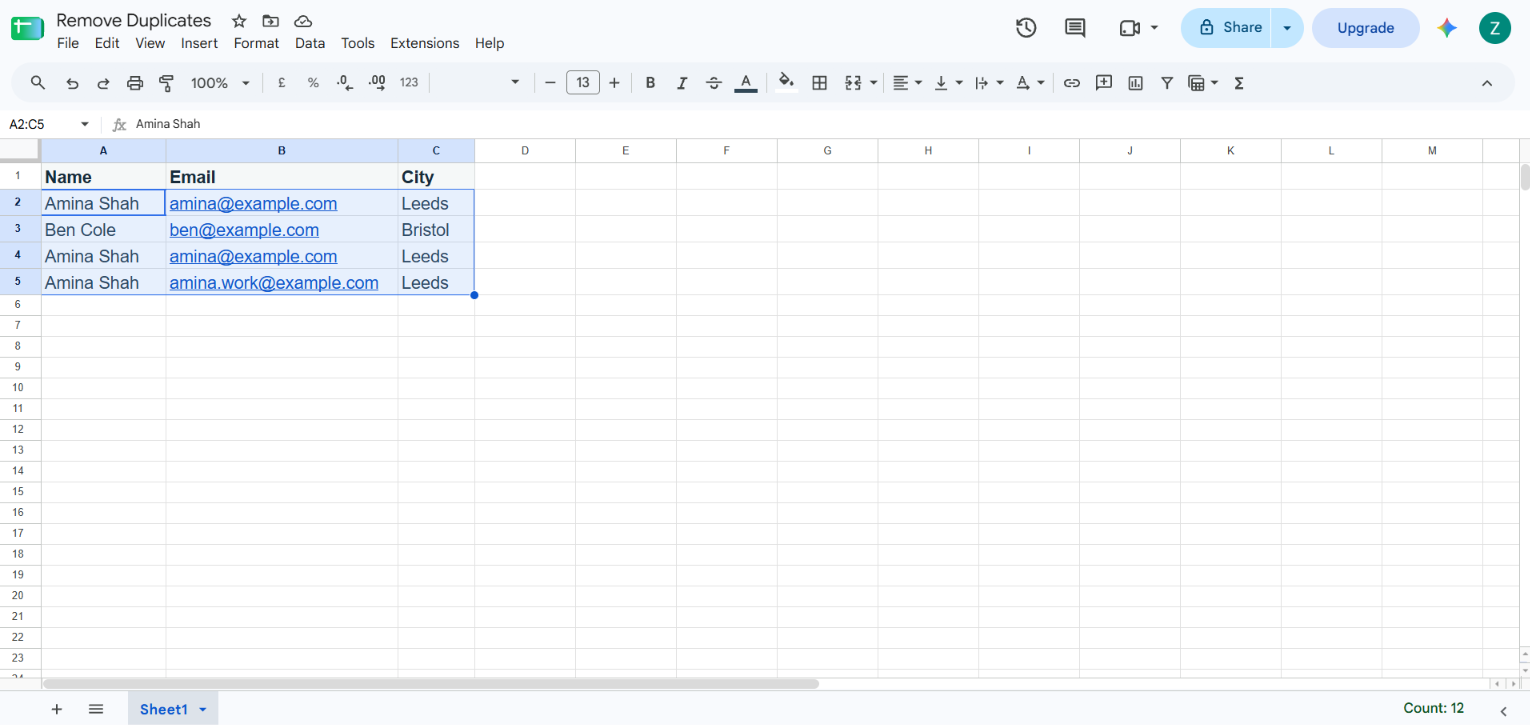
Suppose your sheet contains this fictional data:
| Name | City | |
|---|---|---|
| Amina Shah | amina@example.com | Leeds |
| Ben Cole | ben@example.com | Bristol |
| Amina Shah | amina@example.com | York |
| Amina Shah | amina.work@example.com | Leeds |
If you compare all three columns, the third row is not an exact duplicate of the first because the city differs. If email alone identifies a contact, compare only the Email column. Think through the consequence first: Sheets will remove a matching row, including its other values, and keep one version.
Before you start: protect important data
Removing rows is a destructive edit. Use File → Make a copy to preserve the original sheet, or duplicate the tab using its tab menu. If you only need to identify duplicates, use conditional formatting or a formula instead of deleting them.
Remove duplicate rows with the built-in tool
These steps are for Google Sheets in a desktop browser.
-
Select the complete range of records you want to clean, including every column that belongs to each record. For example, select
A1:C100rather than just the email column if you want complete rows removed together. -
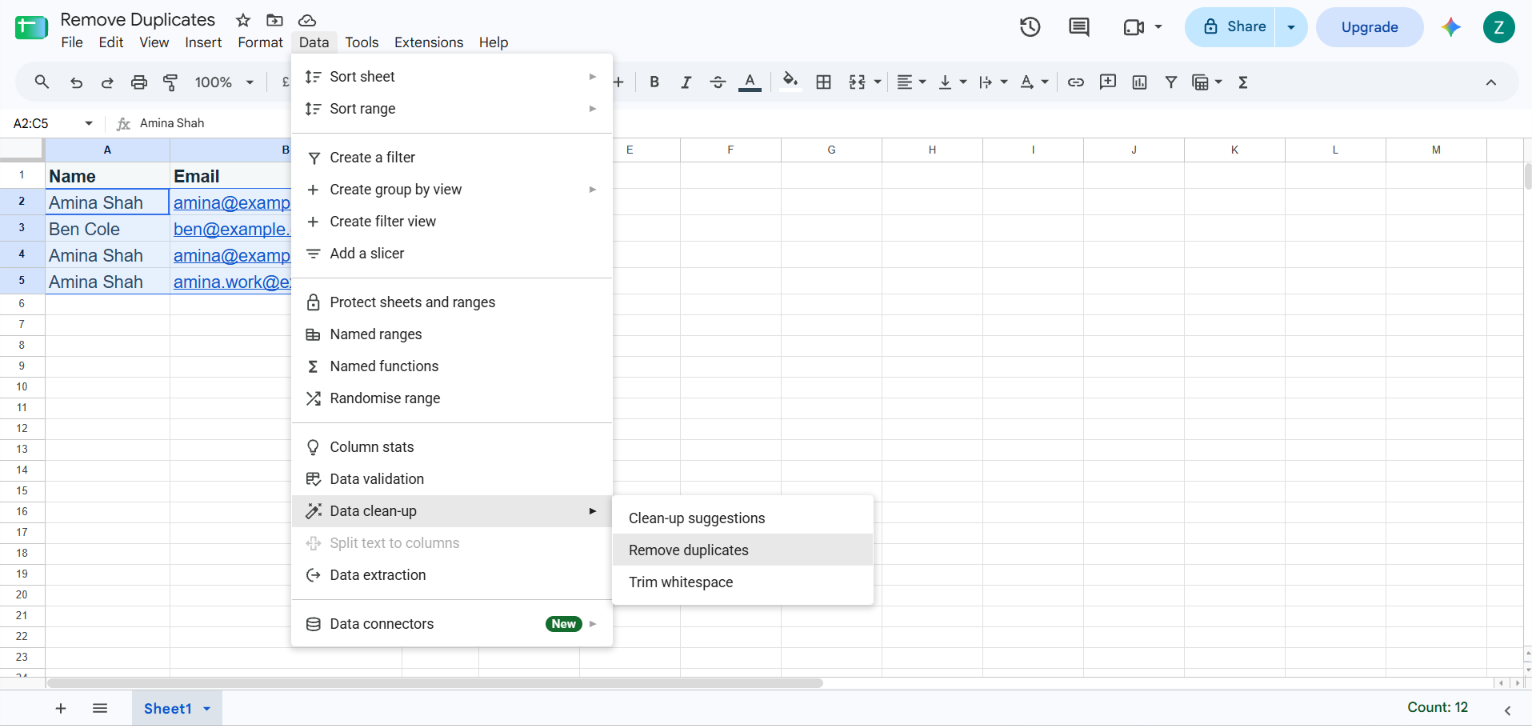
From the menu, choose Data → Data cleanup → Remove duplicates.
-
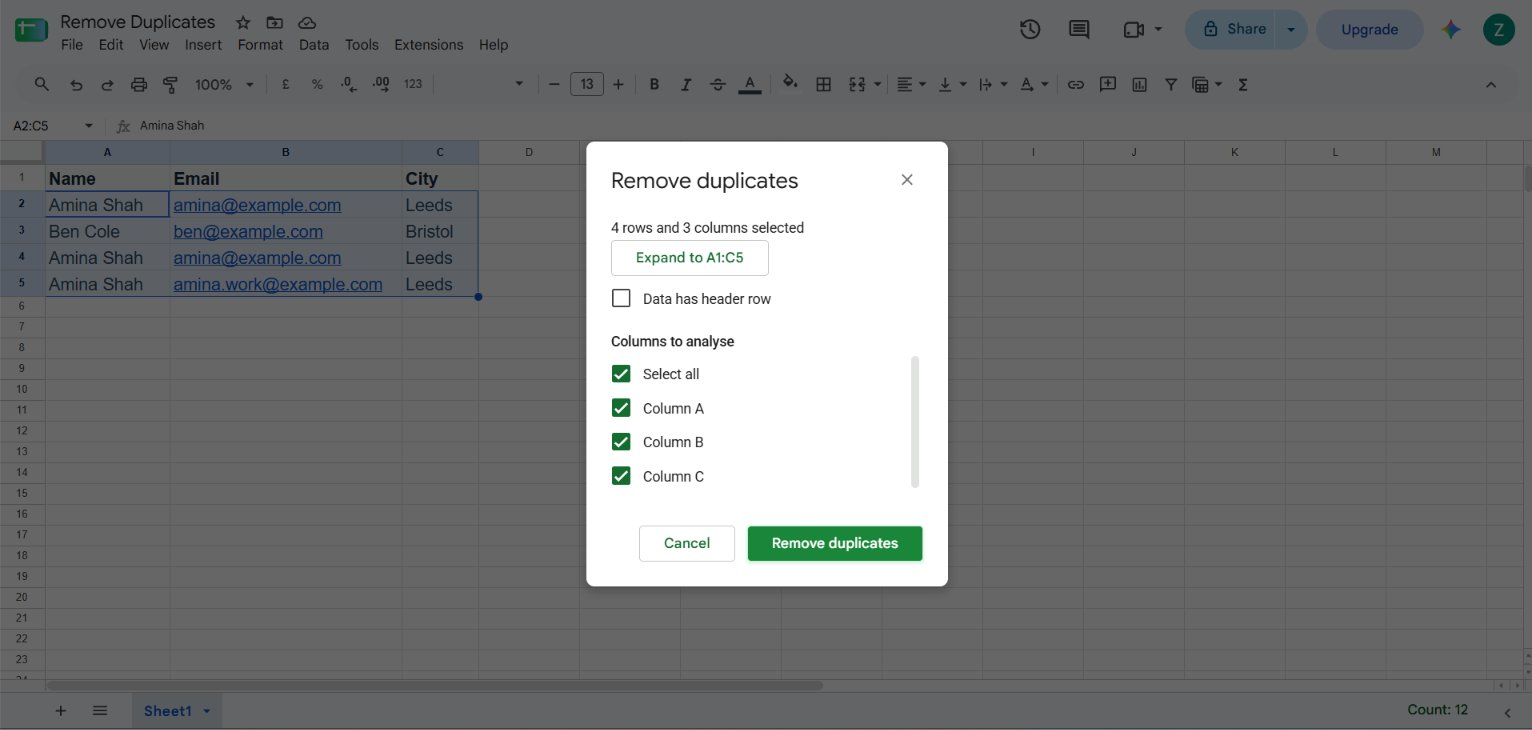
In the dialog, check Data has header row if the first selected row contains column names such as Name, Email, and City.
-
Under Columns to analyze, select the columns Sheets should use when deciding whether rows are duplicates.
-
Review the selections, then click Remove duplicates.
-
Read the confirmation message to see how many duplicate rows were removed.
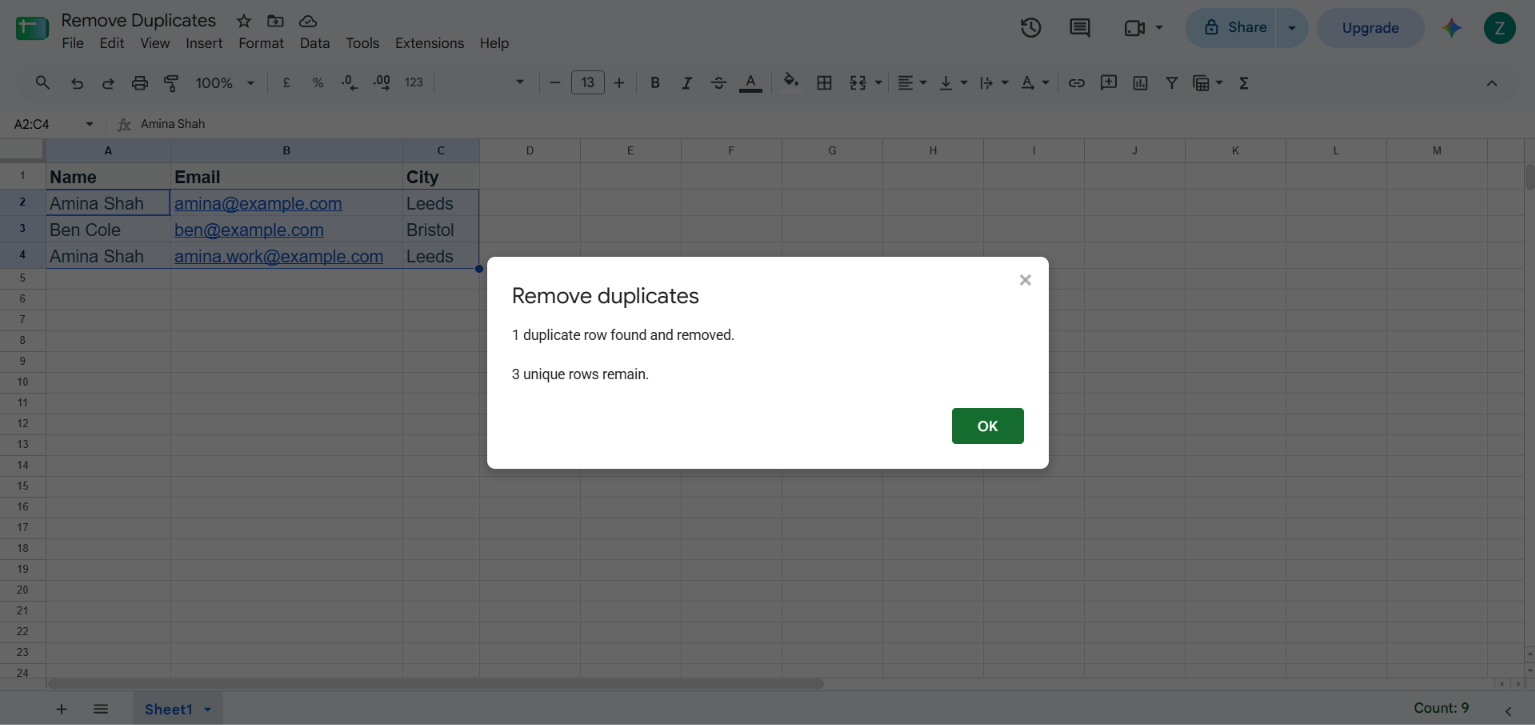
The tool treats cells with identical values but different letter case, formatting, or formulas as duplicates. Google’s guidance also notes that selecting a single cell within a range can cause duplicates to be removed for the whole range; select the intended range explicitly to avoid surprises.
Choose the right range and comparison columns
Keep each row together
When the output should remove entire records, select the whole record range. Selecting just one column can make it unclear which neighboring cells should be retained, especially if your sheet contains adjacent data. Keep unrelated notes or summaries outside the selected range.
Use all columns for exact row matches
Select every record column in Columns to analyze when rows are duplicates only if all those fields match. For the example, checking Name, Email, and City leaves both Amina rows because their cities differ.
Use a key column for duplicate identities
If email is the unique identifier, select all record columns as the range, but analyze only Email. Sheets will treat rows with the same email as duplicates even when the name or city differs. Review which version you want to keep before confirming. Sort the range first if you need a particular row to remain, and preserve a backup.
Check the header setting
If the range begins with a header row, tell the dialog that it has headers so the labels are not treated as a record. If your selection starts at row 2 because the header is outside the selection, leave the header option off.
Find duplicates without deleting rows
For a review-first approach, add a temporary helper column. If emails are in B2:B, put this in D2 and fill down:
=COUNTIF($B$2:B2,B2)>1Rows after the first occurrence show TRUE; the first occurrence shows FALSE. Filter the helper column to inspect repeated entries, then decide what to change. Adjust the column reference if your identifier is somewhere else. This formula compares the cell contents as Sheets evaluates them; it is not a full cleanup of spacing or spelling variations.
Another option is to create a separate unique list with =UNIQUE(A2:C). This returns distinct rows to the formula’s output area without deleting the source. It compares complete rows in the range, so two rows that differ in any included column remain separate. Ensure the cells below the formula are empty so the results can expand.
Common mistakes and troubleshooting
A row you wanted to keep disappeared
Use Edit → Undo immediately if the cleanup was your most recent action. Otherwise, restore from the copy or version history. Before trying again, check the selected comparison columns and decide which matching row should be retained.
Rows that look the same were not removed
Look for differences in spaces, punctuation, nonprinting characters, or other columns included in the comparison. Google Sheets has a separate Data → Data cleanup → Trim whitespace option for leading, trailing, and excessive ordinary spaces, but it does not trim non-breaking spaces. Make a copy before cleaning or normalizing data.
Different people with the same name were treated as duplicates
Name alone is often not a reliable unique key. Undo the action if possible, then use a better identifier such as an email address or a combination of columns.
The header was treated like data
Reopen the tool with the correct range and set Data has header row appropriately. If your selected range starts below the header, do not mark it as part of the range.
Frequently asked questions
Does Google Sheets keep the first duplicate or the last one?
The tool keeps one row for each matching set and removes the other rows. If it matters which row remains, sort or otherwise arrange the range first, make a copy, and inspect the result before continuing.
Can I remove duplicates based on one column but delete the entire row?
Yes. Select the entire record range, then choose only the key column under Columns to analyze. Review the range and backup first because the other values in removed rows go with them.
Does capitalization affect duplicate detection?
Google’s documentation says identical values with different letter cases are considered duplicates by the built-in feature. If capitalization carries meaning in your dataset, test on a copy first.
Can I remove duplicates in the mobile app?
Google documents this cleanup workflow for a spreadsheet opened on a computer. If the menu option is not available in your mobile app, use a desktop browser or create a separate unique list with a formula.
Related guides
- How to lock cells in Google Sheets — protect your data after removing duplicates.
- How to remove a blank page in Google Docs
- Browse all ToolTroubles tutorials
Official references
Was this guide helpful?
Your response is shown here only. It is not sent or saved.
Related guides
How to Create a Drop-Down List in Google Sheets
Add a drop-down list in Google Sheets using typed items, a cell range, or preset lists. Includes colors, multiple selections, mobile steps, and fixes.
Read guideHow to Lock Cells in Google Sheets (Protect Cells, Ranges, and Sheets)
Lock cells in Google Sheets with Data → Protect sheets and ranges. Learn how to restrict editors, show warnings, lock formula references, and unlock cells.
Read guide