
How to Create a Drop-Down List in Google Sheets
Add a drop-down list in Google Sheets using typed items, a cell range, or preset lists. Includes colors, multiple selections, mobile steps, and fixes.
To add a drop-down list in Google Sheets, select the cell, click Insert → Dropdown, enter your items under Criteria, and click Done. You can type the items yourself or point the list at a range of cells, and you can add the same list to several cells at once. Creating and editing drop-downs works on a computer and in the Android app. On iPhone and iPad you can only choose from lists that were created on a computer.
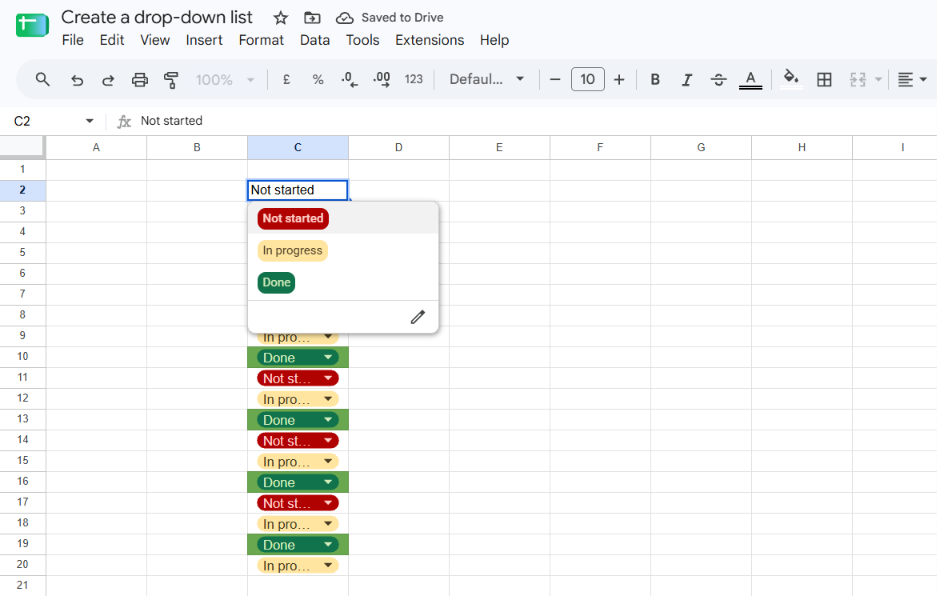
When a drop-down list is useful
A drop-down list limits what can go into a cell to a set of approved values. That keeps spellings consistent, which matters when you later count, filter, or sort the data. Typical uses are status columns, categories, priorities, and names of team members.
The examples below use a fictional task tracker with a Status column in C2:C20.
Choose the right method
Google’s Help Center describes three ways to open the drop-down setup, and the data validation panel then gives you two ways to supply the items.
| Method | Where the items come from | Best for |
|---|---|---|
| Dropdown (typed items) | Values you enter in the panel | Short lists that rarely change |
| Dropdown from a range | Cells in your spreadsheet | Lists you expect to update |
Preset drop-down (@ menu) |
Google’s built-in lists, such as “Project status” or “Priority” | Common workflows where the default values fit |
How to create a drop-down list in Google Sheets
-
Open your spreadsheet in Google Sheets on a computer.
-
Select the cell or cells where the drop-down should appear. For the tracker example, select C2:C20.
-
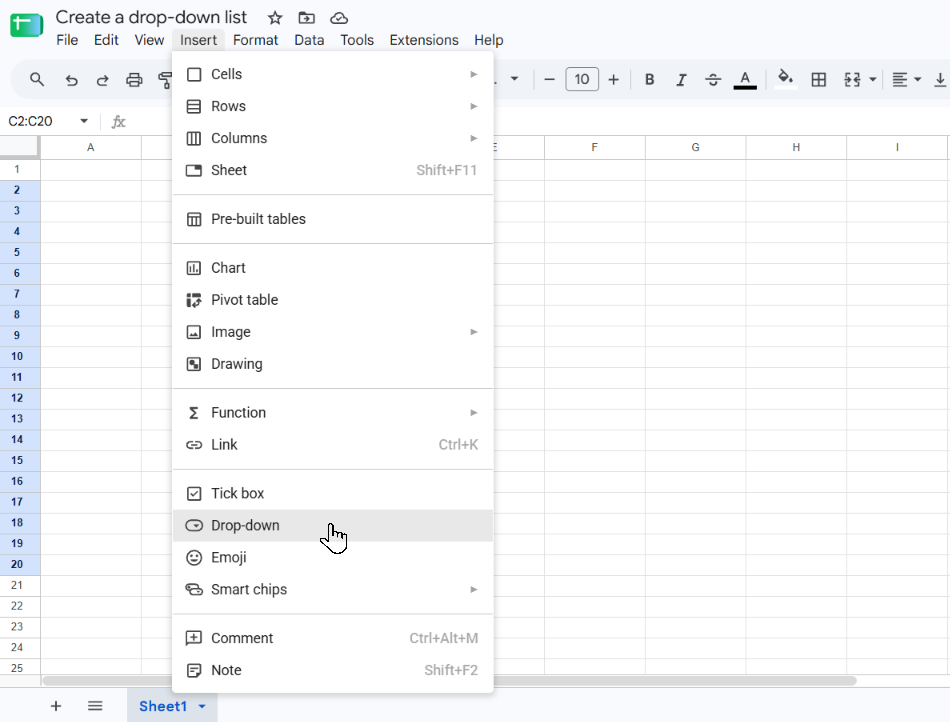
Open the drop-down setup using any one of these options:
- Click Insert → Dropdown.
- Click Data → Data validation → Add rule.
- Right-click the cell and choose Dropdown.
-
In the Data validation rules panel, under Criteria, choose Dropdown to type the items yourself.
-
Enter the first value, then click Add another item for each additional value. For the example, enter Not started, In progress, and Done.
-
Optionally, assign a color to each item. The Help Center notes that a value can have an assigned color, which then appears on the item in the cell.
-
Click Done.
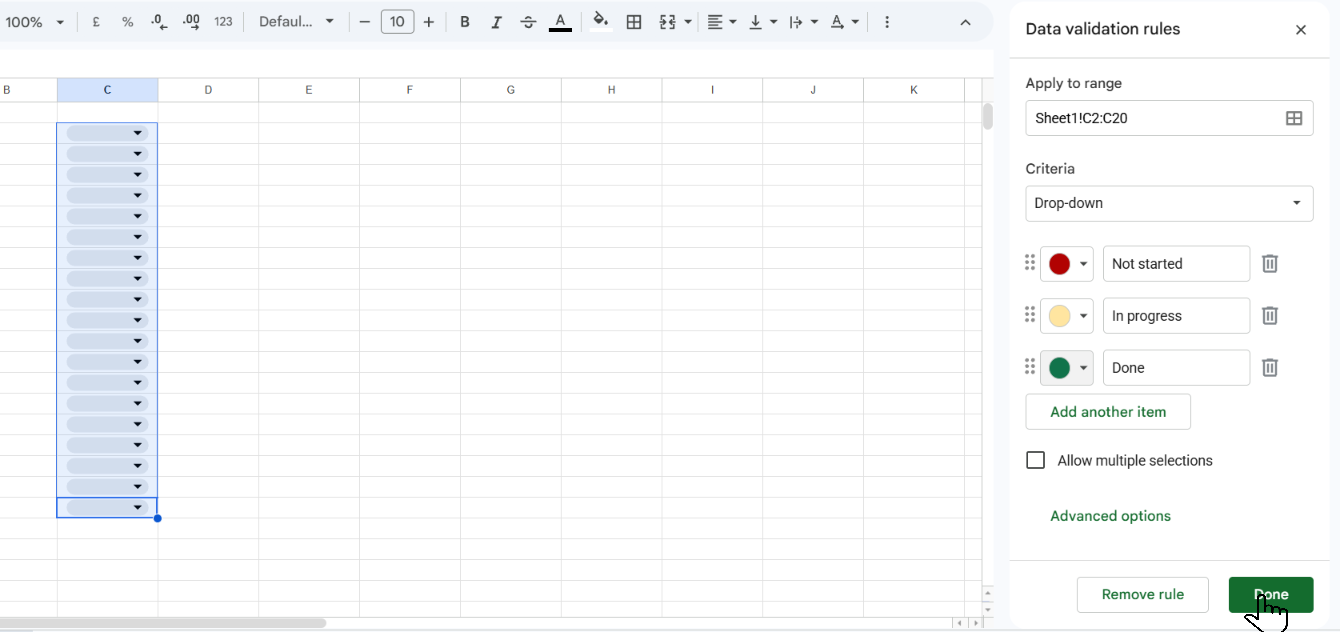
Each selected cell now has a drop-down. You can also open it by selecting the cell and pressing the Spacebar, according to a Google Sheets expert’s guide listed in the references.
Create a drop-down from a range of cells
Use this method when the options already exist in your spreadsheet or will change over time.
- Type your options in a column, for example Not started, In progress, and Done in F2:F4.
- Select the cells that should contain the drop-down (C2:C20).
- Click Insert → Dropdown.
- Under Criteria, choose Dropdown from a range.
- Select the cells that hold the options, or type the range, such as
F2:F4. - Click Done.
Google states that if you change the contents of the source range, the list updates automatically. If you expect to add more options later, select a larger range such as F2:F10 so new entries appear in the list. One expert guide reports that blank cells and duplicate values in the source range are ignored.
Create a drop-down from existing cell values
If cells already contain the values you want, you can turn them into a drop-down without retyping.
- Select the cells that contain the existing data.
- Right-click and choose Dropdown.
- Optionally, open the Data validation rules panel and click Add another item to add more values.
- Click Done.
The Help Center says the options are created in the order of the selected ranges, going down columns first and then across rows. If one of the selected cells already contains a drop-down, the other cell values are appended to that existing rule.
Insert a preset drop-down with the @ menu
- Select a cell.
- Type
@. - Under the components section, click Dropdowns.
- Choose a preset such as Project status or Priority.
Preset lists come with predefined values. You can edit them afterward in the same way as any other drop-down.
Customize the drop-down list
Reject invalid entries or show a warning
By default, a value that does not match the list is rejected. To let people type values outside the list instead:
- Open the drop-down rule by selecting the cell and clicking Data → Data validation.
- Click Advanced options.
- Under If the data is invalid, choose Show a warning.
- Click Done.
Change the display style
In Advanced options, under Display Style, choose one of three styles:
- Chip: shows the selected value as a chip.
- Arrow: shows a small arrow in the cell.
- Plain text: shows the value as ordinary text.
Allow multiple selections
Select Allow multiple selections in the drop-down’s criteria to let one cell hold more than one value. Google lists three limits:
- It works only with the Chip display style.
- Leading and trailing spaces must be removed from the options.
- On mobile, you currently cannot select multiple options even when the setting is on.
How to add color to a Google Sheets drop-down menu
There are two ways to color a drop-down:
- Per-item colors: assign a color to each item in the Criteria section of the data validation panel, as described in step 6 above. This works best with the Chip style.
- Conditional formatting: color the whole cell based on its value.
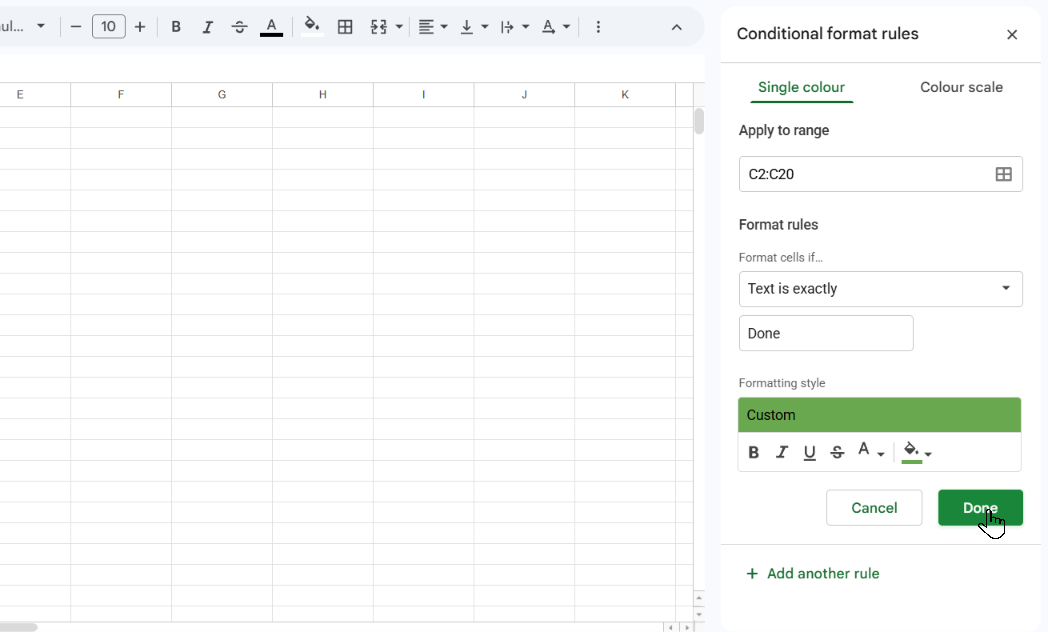
To color whole cells with conditional formatting:
- Select the drop-down cells (C2:C20).
- Click Format → Conditional formatting.
- Under Format rules, choose Text is exactly and enter
Done. - Choose a fill color and click Done.
- Click Add another rule and repeat for the other values.
Use a formula with a drop-down list
A drop-down list cannot be created by typing a formula into the cell. Formulas work with drop-downs in two ways.
Generate the source list with a formula. Put a formula in a helper area and use the cells it fills as the range for Dropdown from a range. For example, this formula returns the unique, non-blank, sorted values from B2:B and spills them down the column:
=SORT(UNIQUE(FILTER(B2:B, B2:B<>"")))Select the cells that the formula fills as the source range. Use this when the list should follow another column. It assumes the source data is in column B.
Use the selected value in a formula. A drop-down cell holds an ordinary value, so other formulas can read it. For example, this counts how many tasks in the tracker are marked “Done”:
=COUNTIF(C2:C20, "Done")Use drop-downs on Android, iPhone, and iPad
Android: you can create a list in the Google Sheets app.
- Tap the cell or cells.
- Tap More in the top right, then tap Data Validation.
- Under Criteria, choose List of items (tap +Add to enter each item) or List from a range.
- Optionally, turn off Show dropdown list in cell to hide the arrow. To accept only listed items, choose Reject input under On invalid data.
- Tap Save.
iPhone and iPad: Google says you need a computer to create and edit drop-down lists. After one has been created, you can choose an option from it on your iPhone or iPad.
Edit or delete a drop-down list
- Select the cell or cells and click Data → Data validation, or click the drop-down’s Edit button.
- To change the options, edit the items under Criteria.
- To delete the list, click Remove Rule.
- Click Done.
If you used a range as the source and later delete a value that had an assigned color, Google notes that the value and color still appear under criteria as uneditable. To remove it, change the source range or change another item’s color.
Common mistakes and troubleshooting
Typing a value is rejected
This is the default behavior. Open Data → Data validation → Advanced options and set If the data is invalid to Show a warning if you want people to type values outside the list.
The multiple selections option is unavailable or not working
Check that the display style is Chip, remove any leading or trailing spaces from the options, and remember that multiple selections currently do not work on mobile.
I cannot create a drop-down on my iPhone or iPad
The iPhone and iPad app can only use existing drop-downs. Create the list on a computer.
The list does not show new items
If you used Dropdown from a range, make sure the new item sits inside the selected range. Extend the range in the data validation panel if it does not.
Drop-down chip suggestions appear or do not appear when typing
Click Tools → Suggestion controls → Enable dropdown chip suggestions to turn them on or off.
Frequently asked questions
How do I make a drop-down menu in a cell?
Select the cell, click Insert → Dropdown, enter your items under Criteria, and click Done.
Can I create a drop-down from a range?
Yes. Choose Dropdown from a range under Criteria and select the cells that contain your options.
Can a drop-down list have colors?
Yes. Assign a color to each item in the criteria panel, or use conditional formatting to color the entire cell.
What is the difference between a drop-down and data validation?
Drop-down lists are created through Google Sheets’ data validation rules, which is why the setup opens in the Data validation rules panel. Data validation can also apply other kinds of rules, but a drop-down is the most common one.
How do I remove a drop-down list?
Select the cell, click Data → Data validation, and click Remove Rule.
Related guides
- How to Remove Duplicates in Google Sheets — useful for cleaning a source list before using it for a drop-down.
- How to Lock Cells in Google Sheets — protect formulas and reference cells used in drop-down lists.
Official references
- Create an in-cell dropdown list (Computer) – Google Docs Editors Help
- Create an in-cell dropdown list (Android) – Google Docs Editors Help
- Create an in-cell dropdown list (iPhone & iPad) – Google Docs Editors Help
- Use conditional formatting rules in Google Sheets – Google Docs Editors Help
- How to Create a Drop-Down List in Google Sheets – InfoInspired (secondary source: Spacebar shortcut and source-range behavior)
Was this guide helpful?
Your response is shown here only. It is not sent or saved.
Related guides
How to Lock Cells in Google Sheets (Protect Cells, Ranges, and Sheets)
Lock cells in Google Sheets with Data → Protect sheets and ranges. Learn how to restrict editors, show warnings, lock formula references, and unlock cells.
Read guideHow to Remove Duplicates in Google Sheets
Learn how to remove duplicate rows in Google Sheets, choose which columns to check, and avoid accidentally deleting important data.
Read guide