
How to Lock Cells in Google Sheets (Protect Cells, Ranges, and Sheets)
Lock cells in Google Sheets with Data → Protect sheets and ranges. Learn how to restrict editors, show warnings, lock formula references, and unlock cells.
To lock cells in Google Sheets, select the cells, open Data → Protect sheets and ranges, click Add a sheet or range, then choose Set permissions and restrict who can edit. Google Sheets calls this feature “protecting” a range or sheet, and there is no separate “lock” command. Protection only controls who can edit. It does not hide data or add a password, so it should not be used as a security measure.
When locking cells is useful
Locking cells helps when a spreadsheet is shared and some content should not change. Typical cases include:
- Formula columns that other editors should not overwrite.
- Header rows, tax rates, or other fixed reference values.
- A template where people fill in only certain cells.
If you only want to discourage accidental edits rather than block them, Google Sheets also offers a warning-only option, covered below.
Before you start
- You need edit access. The spreadsheet owner decides who can change ranges and sheets. An editor can set who can edit a range or sheet, but cannot take permissions away from the owner.
- Use a native Google Sheet. If “Protect sheets and ranges” does not appear, you are probably editing an Excel file in Office editing mode. Convert the file to Google Sheets first.
- Know the limits. Protected content can still be printed, copied, pasted, and exported or imported as a copy. Protection cannot be combined with a password.
How to lock cells in Google Sheets
-
Open the spreadsheet in Google Sheets on a computer.
-
Select the cells you want to lock.
-
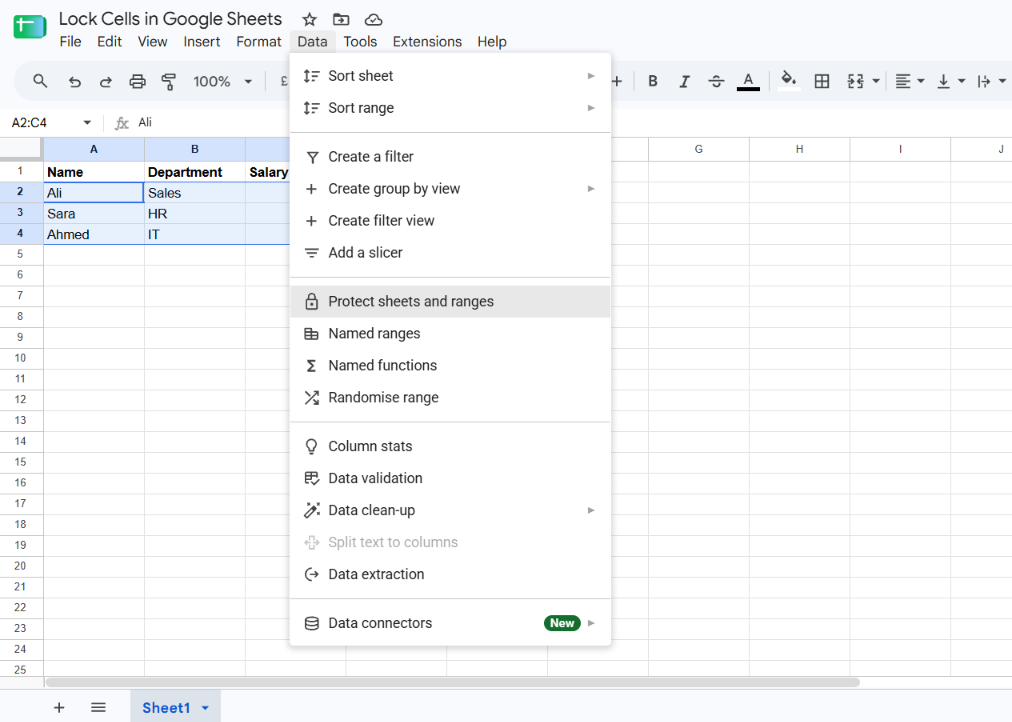
Click Data → Protect sheets and ranges. A panel opens on the right.
-
Click Add a sheet or range.
-
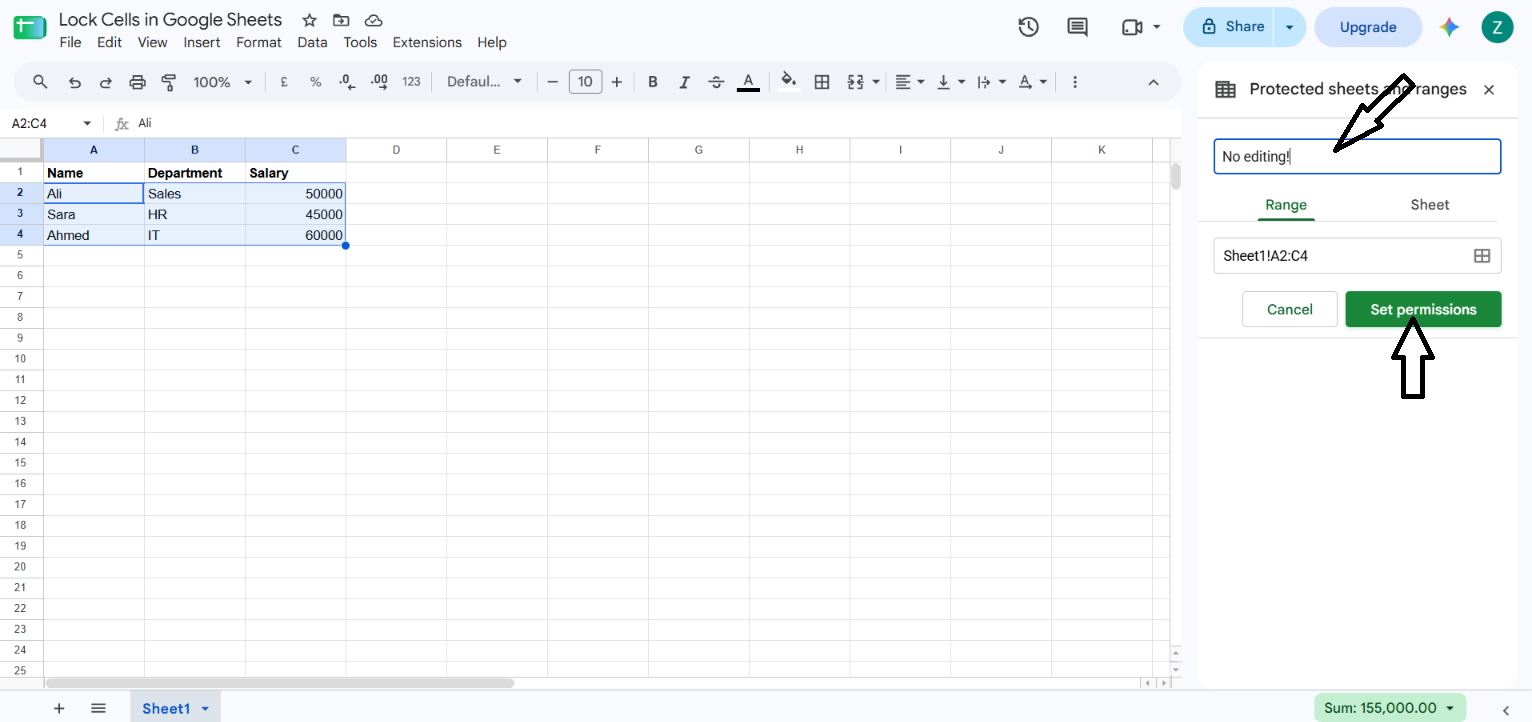
Make sure the Range tab is selected. To change the range, click the spreadsheet icon and highlight a different one, or type it in.
-
Optionally enter a description so you can identify the protection later.
-
Click Set permissions (or Change permissions when editing an existing rule).
-
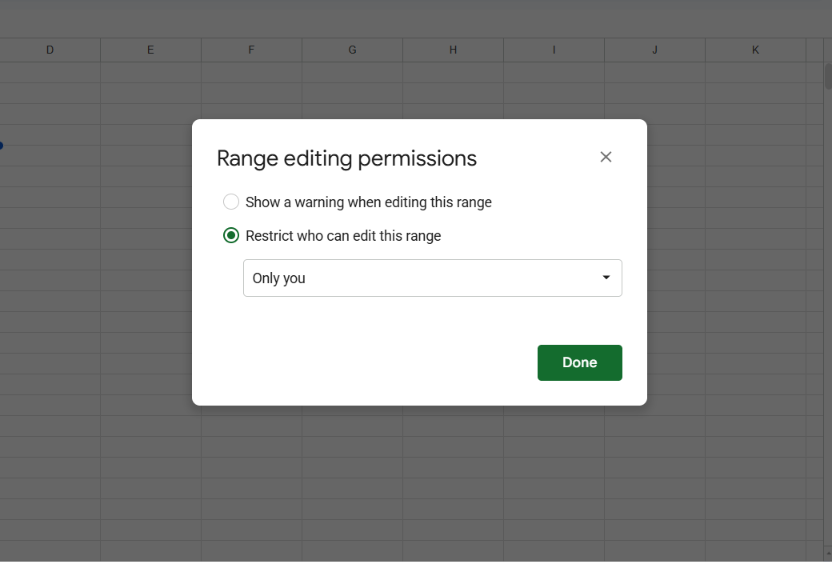
Choose how editing is limited:
- Show a warning when editing this range does not block anyone. Editors see a message asking them to confirm the edit.
- Restrict who can edit this range limits editing to the people you choose. Select Only you to keep the range to yourself (the owner can always edit), or Custom to add specific people.
-
Click Done.
To check what is locked, click View → Show → Protected ranges.
Lock a whole sheet except certain cells
Use this when most of a sheet should be read-only but a few cells need to stay editable, such as an input form.
- Click Data → Protect sheets and ranges → Add a sheet or range.
- Select the Sheet tab and choose the sheet to protect.
- Check Except certain cells and enter the range that should remain editable.
- Click Set permissions and choose who can edit, then click Done.
One limitation: when you protect a sheet, you cannot lock the formatting of cells while also letting people edit the input values.
Lock cells in a formula (absolute references)
“Locking” a cell in a formula is a different task. It stops a reference from shifting when you copy or drag the formula. It does not stop anyone from editing the cell. You do this with dollar signs:
| Reference | What stays fixed |
|---|---|
$E$1 |
Column and row |
E$1 |
Row only |
$E1 |
Column only |
Example with fictional data, where E1 holds a commission rate:
=B2*$E$1Dragging this formula down changes B2 to B3, B4, and so on, while $E$1 stays fixed.
Shortcut to lock a cell reference
While entering or editing a formula, place the cursor in the reference and press F4 on Windows or Chrome OS to cycle through the reference types. Google lists Fn + F4 for Mac. On a Mac, if F4 alone triggers brightness or another system function, you need the Fn key. There is no keyboard shortcut for protecting a range.
Lock cells in Google Sheets on Mac
The steps are the same as on any computer, because Sheets runs in the browser: Data → Protect sheets and ranges. The only Mac-specific detail is the F4 reference toggle above (Fn + F4).
Lock cells on Android or iPhone
The Protect sheets and ranges panel is a desktop feature. Google’s help page describes the steps for a computer only, and university IT documentation states that protecting a range or sheet cannot be done in the Android or iOS app. Set up protection on a computer first. Mobile editors then work within those rules.
Remove or change a lock
- On a computer, open Data → Protect sheets and ranges.
- Click Cancel in the side panel to see the list of existing protections.
- Click the protection you want to change, then edit its range or permissions, or use its delete control to remove it.
You can only change a protection if your account has permission to do so.
Common mistakes and troubleshooting
“Protect sheets and ranges” is missing
The file is likely an Excel file open in Office editing mode. Convert it to Google Sheets (File → Save as Google Sheets) and look again.
Someone can still copy or export the data
Protection restricts editing only. People with access can still print, copy, paste, and export copies. If the data is confidential, adjust sharing permissions instead of relying on protection.
I can’t remove a protection
Only people allowed to change that protection can remove it. Ask the spreadsheet owner.
I locked a formula reference but the cell can still be edited
Dollar signs only fix what a formula points to. To prevent edits, protect the range.
Frequently asked questions
Can you lock cells in Google Sheets?
Yes. Google Sheets provides this through Data → Protect sheets and ranges, which restricts who can edit selected cells, ranges, or whole sheets.
Can I lock certain cells in Google Sheets and leave the rest editable?
Yes. Either protect only the cells you need, or protect the whole sheet and use Except certain cells for the editable area.
Can I protect a Google Sheet with a password?
No. Google states that protecting a sheet does not support password protection.
Can I let specific people edit a locked range?
Yes. Under Restrict who can edit this range, choose Custom and add the people who should keep access.
Is there a shortcut to lock cells in Google Sheets?
Not for protecting cells. The only related shortcut is F4 (Fn + F4 on Mac), which toggles absolute references inside a formula.
Related guides
Official references
Was this guide helpful?
Your response is shown here only. It is not sent or saved.
Related guides
How to Create a Drop-Down List in Google Sheets
Add a drop-down list in Google Sheets using typed items, a cell range, or preset lists. Includes colors, multiple selections, mobile steps, and fixes.
Read guideHow to Remove Duplicates in Google Sheets
Learn how to remove duplicate rows in Google Sheets, choose which columns to check, and avoid accidentally deleting important data.
Read guide